







Getting started with Replay Vision
Contents
This walkthrough takes you from zero to your first observation in about five minutes. We'll have PostHog AI draft a scanner from a common starting point, run it on a recording you pick, and then query the result as a regular PostHog event.
You should already have Session Replay recording sessions for your project. Replay Vision watches those recordings – without them there's nothing to scan.
AI wizard
The fastest way to get set up is our wizard. Run it in your project directory and it reads your codebase, installs the PostHog SDK if you don't have it yet, turns Session Replay on, and creates three scanners written for your product: one that watches your key flow for breakage, one that watches for user frustration, and one that summarizes sessions. It also works for LLM coding agents like Cursor and Bolt:
The scanners it creates are ordinary scanners. You can edit the prompt, filters, and sampling rate afterwards, or delete them and start over.
Prefer to create your first scanner by hand, or want to understand each piece? Follow the steps below.
1. Open Replay Vision and start a scanner
Open Replay Vision from the side menu, then click New scanner. Replay Vision sends recordings to an AI model, so your organization has to allow AI data processing first. If it hasn't yet, the button reads Allow AI analysis and create scanner for admins, or Ask an admin to enable AI analysis for everyone else.
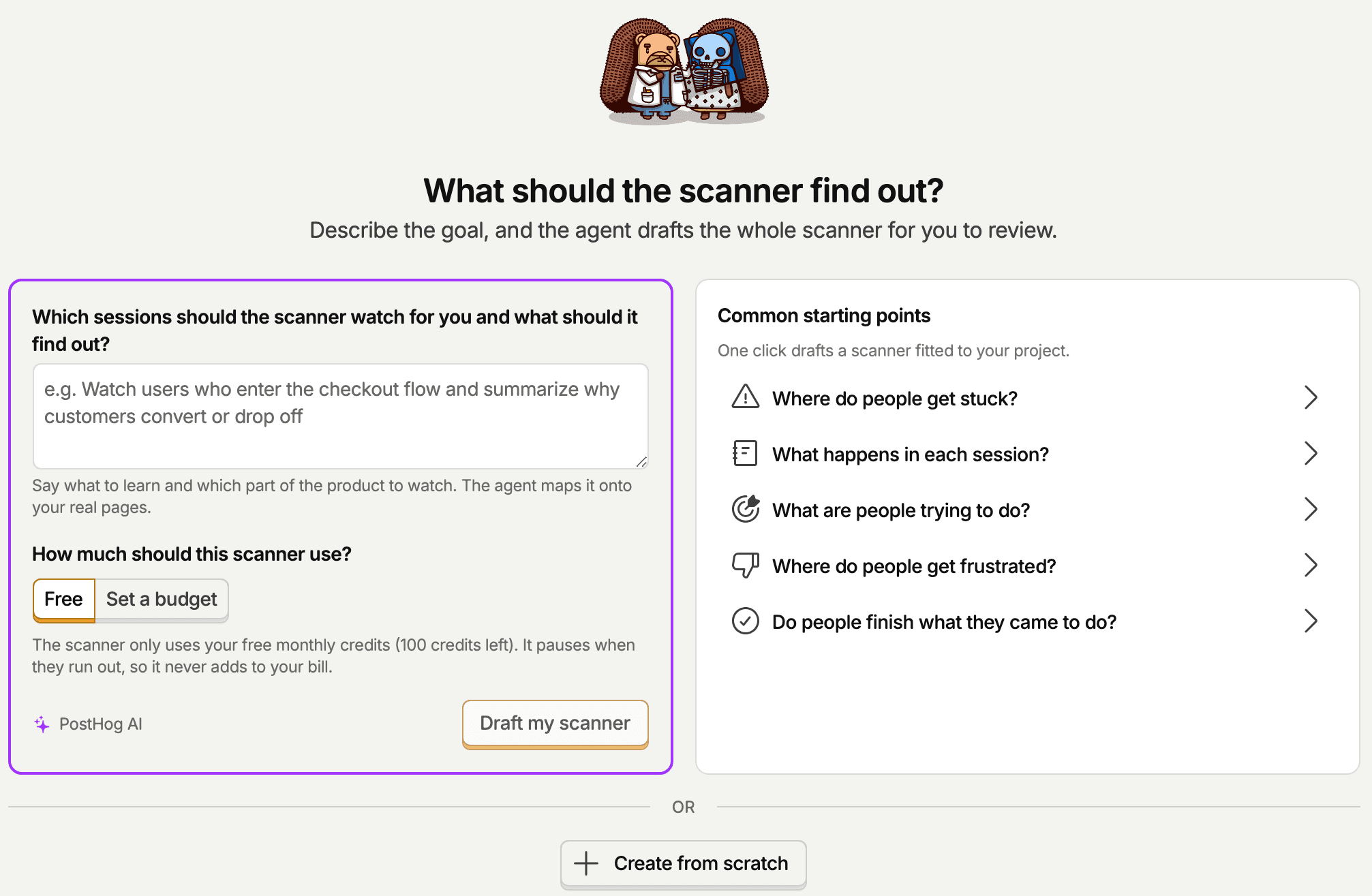
The What should the scanner find out? page gives you three ways to start:
- Describe a goal – type which sessions to watch and what you want to find out, and PostHog AI drafts the whole scanner for your project.
- Common starting points – one-click questions, such as "Where do people get stuck?", that PostHog AI drafts into a scanner the same way.
- Create from scratch – pick a type and write the prompt yourself.
Under How much should this scanner use?, leave Free selected if it's available. The scanner then uses only your organization's free monthly credits and never adds to your bill.
Click Where do people get stuck? to follow along. PostHog AI drafts a scanner fitted to your product. This takes a few seconds. Nothing is saved until you click Create scanner, and you can change anything before then.
2. Look over the scanner
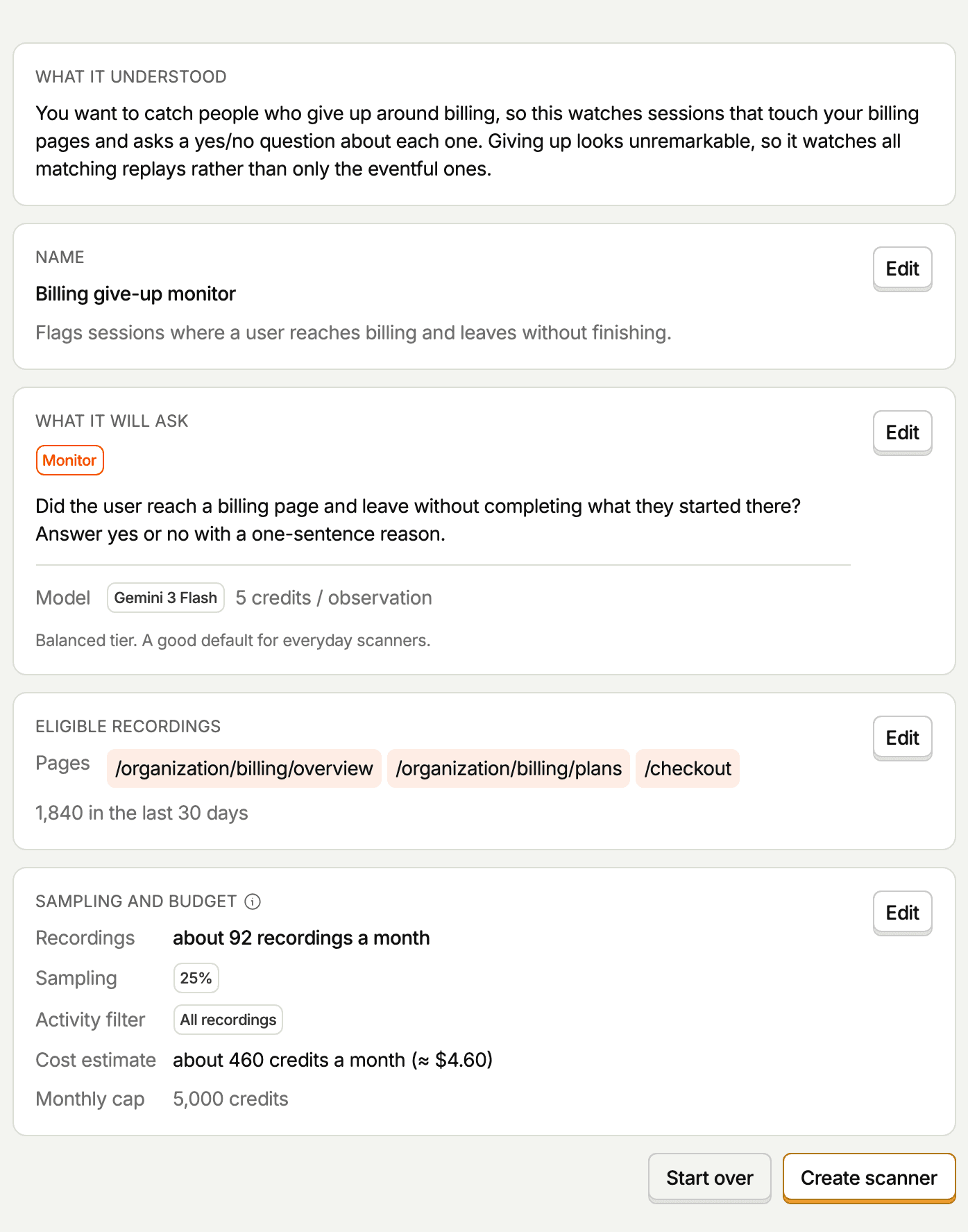
The draft opens on an overview of what PostHog AI set up:
- What it understood – your goal in PostHog AI's words.
- Name – the scanner's name and a short description.
- What it will ask – the scanner type and the prompt, for example a monitor that describes what "stuck" looks like on your pages.
- Eligible recordings – the recording filters, chosen from your product's real pages and events, with a count of matching recordings from recent days.
- Sampling and budget – the model, the sampling rate, the session coverage, and the estimated cost.
Each section has an Edit button that opens the matching step of the scanner editor: Details, Configure, Recordings, or Budget. Start over throws the draft away.
The draft picks its own scanner type. The rest of this walkthrough assumes a monitor, so if the draft chose another type, the result in step 5 and the query in step 6 look different. See scanner types for what each one returns.
For a first run, leave the prompt and model alone. To keep volume low while you experiment, narrow the filters, for example to one page or a specific cohort, and lower the sampling rate.
The overview and the editor's Budget step show an estimated monthly cost based on your project's recent recording volume, the filters you set, the session coverage, the sampling rate, and the model. Use that to size against your budget before saving.
3. Save the scanner
Click Create scanner. The scanner is enabled by default. On its first sweep it scans a few matching recordings from the last 24 hours, so you see results quickly, and then it picks up new matching recordings every few minutes.
For this walkthrough we won't wait for the sweep – we'll trigger one observation by hand against a recording we already know about.
4. Run the scanner on one recording
Open the replay for any session of yours, open the Observations tab in the player sidebar, and click Scan this recording.
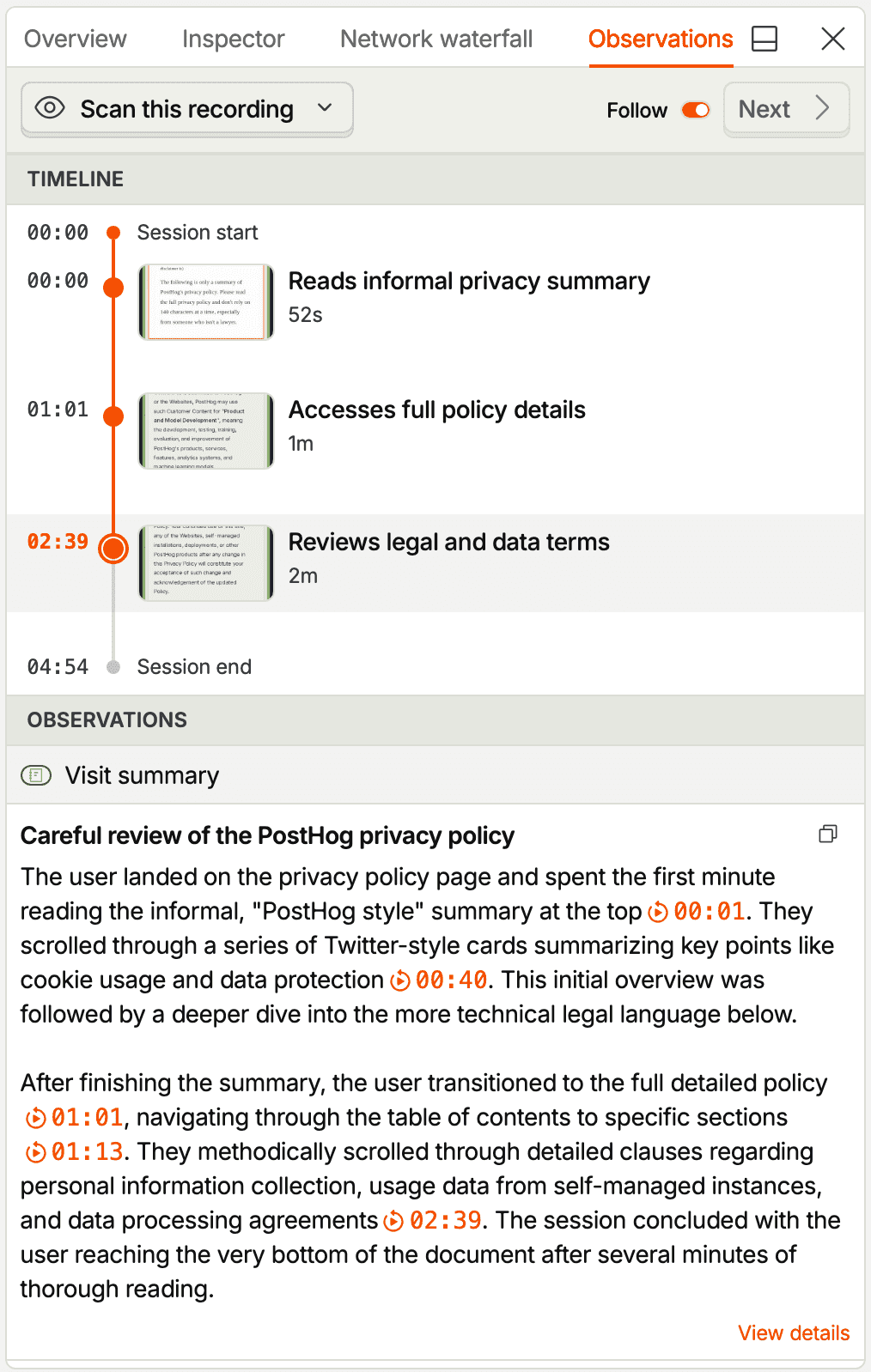
Pick the scanner you just created. PostHog renders the recording, sends it to Gemini, and produces a result. This usually takes a couple of minutes.
You can also run a scanner from its Run tab, or programmatically – see running scanners.
5. Open the observation
Once it finishes, the observation appears in two places: on the scanner's Observations tab, and in the Observations tab of the replay player for the recording you scanned. Open the observation to see the structured result.
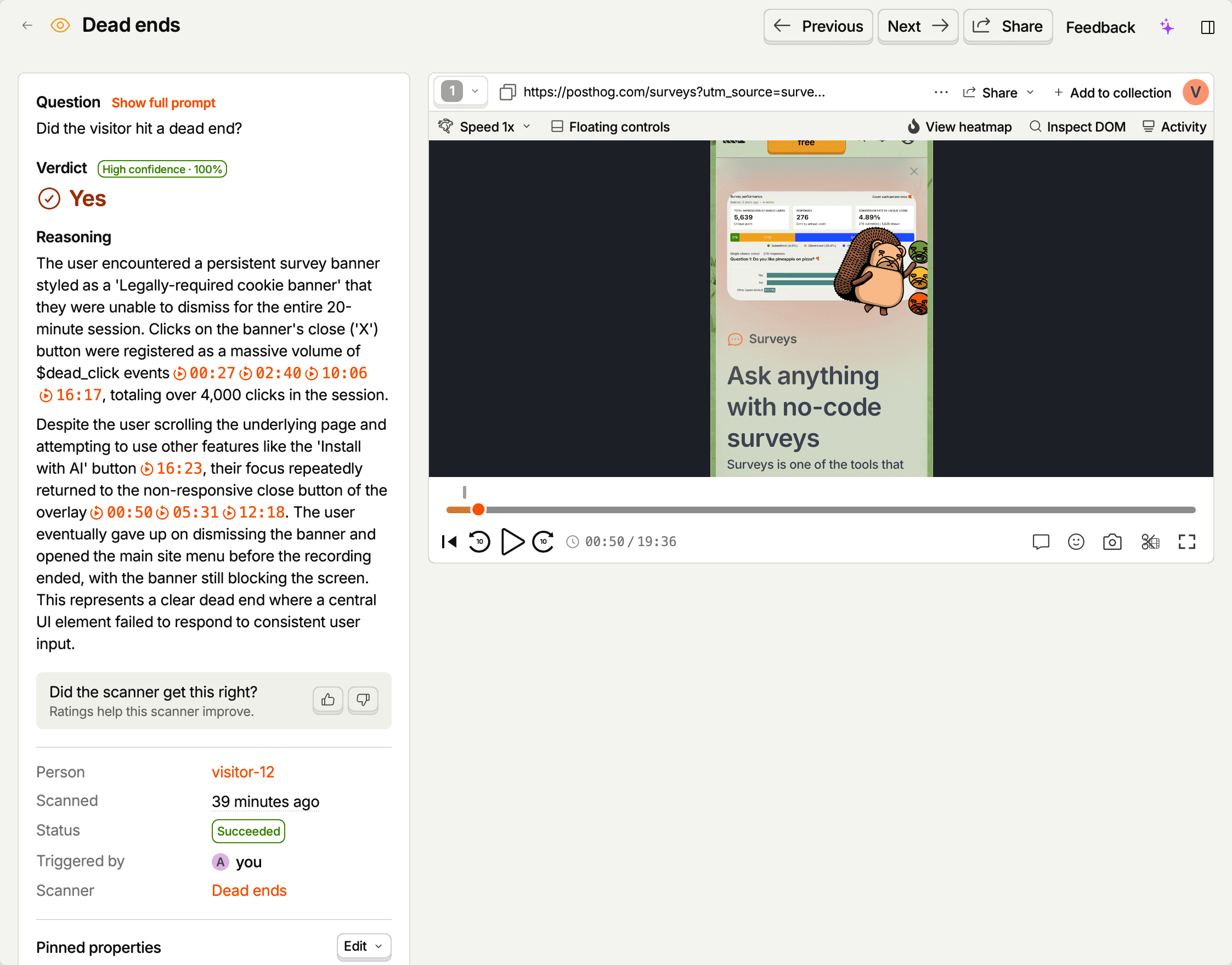
For a monitor scanner you'll see:
- A yes/no verdict with a confidence score.
- The model's reasoning, with clickable citations that jump the embedded player to the relevant moment.
- The Question the scan answered, with a Show full prompt link to the scanner prompt that produced this result. It stays the same even if you edit the scanner afterwards.
Spend a minute here. Watching the moments the model cited next to its reasoning is the fastest way to develop intuition for what your prompt actually catches. Then answer Did the scanner get this right? with a thumbs up or down, and add a note if it missed something. The scanner learns from your team's ratings on later scans – see improving scanners with ratings.
6. Query it as an event
Every successful observation is also captured as a $recording_observed event in your project. Open a new SQL insight and run the query below, swapping in your scanner's name for Dead-end pages:
You'll see a count over time of sessions the scanner flagged. From here you can chart it, drop it on a dashboard, or wire an alert. See observations for more SQL patterns.
What's next
- Scanner types – understand monitor vs. classifier vs. scorer vs. summarizer before authoring your second one.
- Creating scanners – every way to set one up, plus how filters, session coverage, and sampling interact.
- Running scanners – automatic background sweeps vs. on-demand triggers, and what happens to ineligible sessions.
- Observations – read results, rate them, and query them as events.