







Running scanners
Contents
There are three ways a scanner produces observations: automatically in the background as new recordings come in, on demand against recordings you pick, or as a backfill over a past date range. A workflow step can also scan the session behind an event. All three produce the same observation rows and the same $recording_observed events – they only differ in how the work gets triggered. The scanner's Observations tab shows which one triggered each scan: Schedule, On demand, Retry, or Backfill.
Automatically on matching sessions
Once a scanner is enabled, PostHog runs a background sweep for it every five minutes. The sweep:
- Looks for new recordings that match the scanner's filters and that the scanner hasn't already observed. A recording becomes a candidate about 35 minutes after its session's last activity, so the session has ended before it's scanned.
- Skips recordings that can't be scanned: shorter than 15 seconds, fewer than 10 seconds of activity, or more than an hour of activity.
- Applies the session coverage setting to drop low-activity recordings (All recordings keeps everything).
- Applies the sampling rate to what's left, so a 10% rate means roughly one in ten remaining recordings get queued.
- Queues an observation per recording for the model to process.
- Records the result – succeeded, failed, or ineligible – and emits a
$recording_observedevent for successes.
Each scanner and recording pair is only ever observed once. Re-sweeping never produces duplicate observations for the same recording.
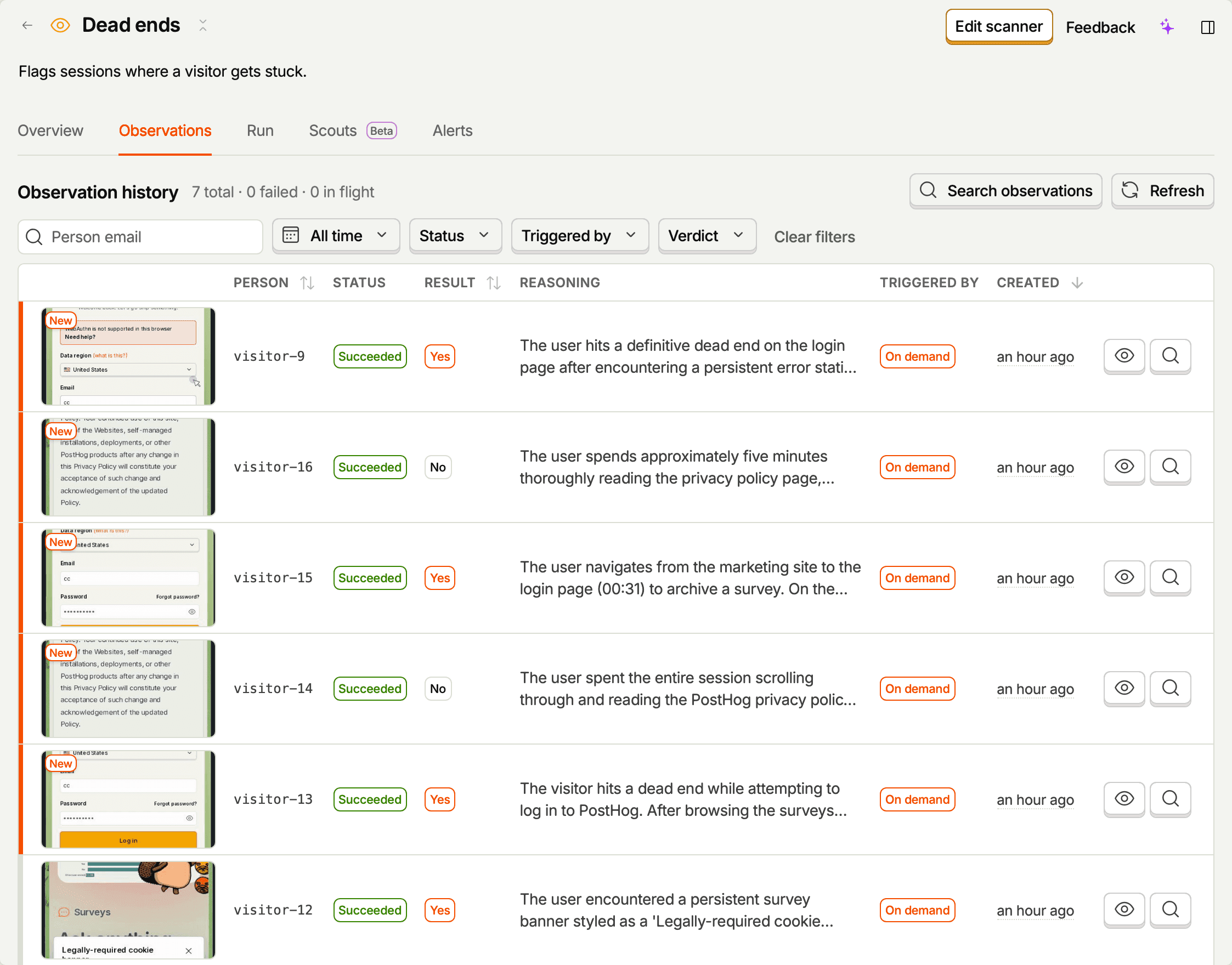
When does the first sweep run?
Within a few minutes of enabling the scanner. On its very first sweep, a new scanner also scans up to three matching recordings from the last 24 hours, so you have results to look at without waiting for new sessions. After that, new results land on the Observations tab as they complete.
A scanner whose filters make its sweeps very expensive to query sweeps less often, down to once an hour. It still catches up on every matching recording.
What happens when I change filters?
Changing a scanner's filters affects which new recordings match going forward. Old recordings aren't re-evaluated against the new filters. To scan earlier recordings that now match, run a backfill.
What happens when I disable the scanner?
Disabling stops the background sweep. Scans already in flight finish, and no new ones get queued. On-demand scans still work.
Re-enabling restarts the sweep from the moment you turn it back on. Recordings from while the scanner was disabled aren't scanned or charged. Run a backfill if you want them.
On demand on recordings you pick
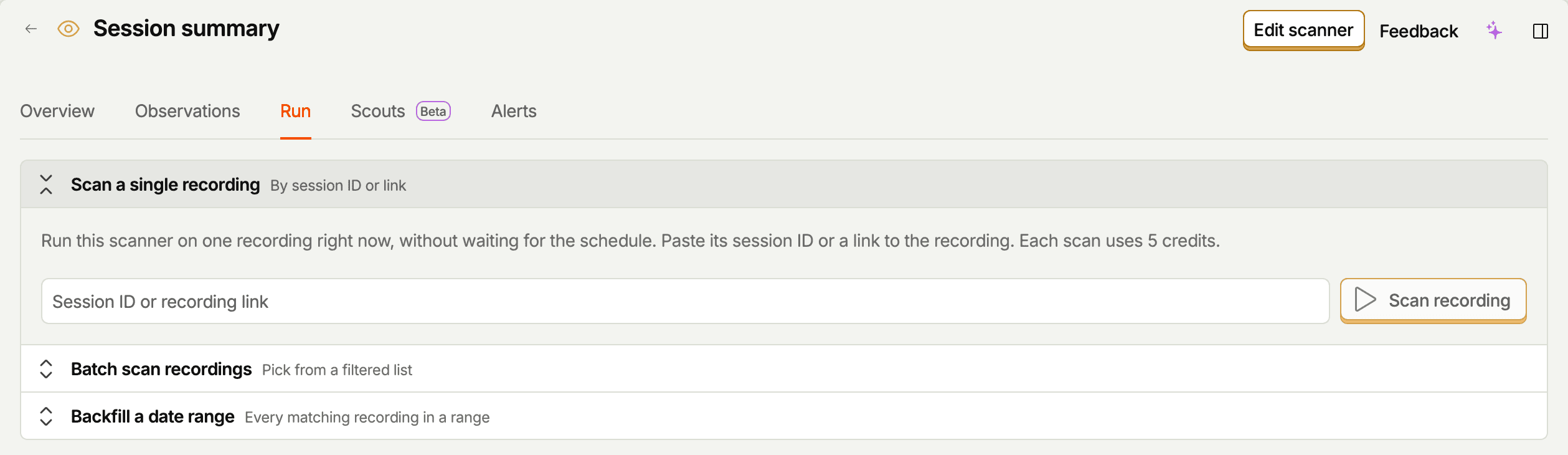
From the scanner's Run tab
Every scanner has a Run tab with three panels:
- Scan a single recording – paste a session ID or a recording link and click Scan recording.
- Batch scan recordings – filter your recordings inline and scan them one at a time with Scan recording, or select several and click Scan N selected. The button shows what the batch will cost. The filters start from the scanner's own filters, so the list opens scoped to the recordings it already watches. Recordings the scanner has already observed show their status and a View observation button instead, so you can't scan them twice. Recordings too short, too inactive, or too long to scan show Skipped: hover it to see why.
- Backfill a date range – see backfill a date range.
From the replay player
Open a recording in the replay player, go to the Observations tab in the player sidebar, and use Scan this recording. Pick the scanner you want to run, and PostHog queues a single observation against that recording.
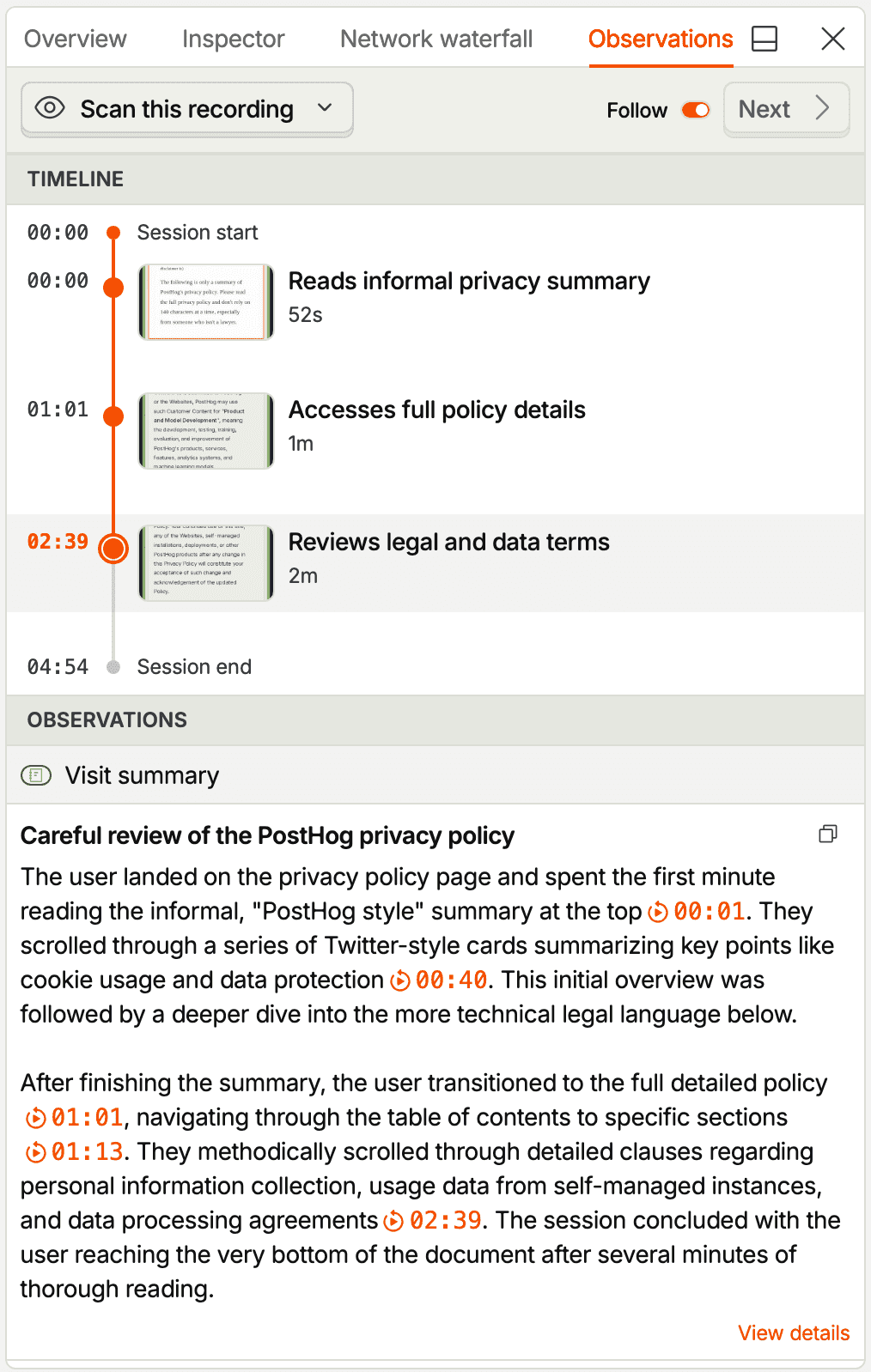
The button in the bar below the player writes a summary of the recording you're watching. If your project has exactly one summarizer scanner, the button reads Summarize with and the scanner's name. Otherwise it reads Summarize this recording and uses a built-in prompt. Use the menu next to the button to pick a different summarizer, and PostHog remembers your choice. The summary appears in the Observations tab in the player sidebar, and after a run the button reads Summarize again. A summary from the built-in prompt isn't saved as a scanner, so there is nothing to open or edit.
From the recordings list
To scan a batch in one go, select recordings in the recordings list and choose Scan these recordings, then pick a scanner. Each selected recording is queued as its own observation. Recordings the scanner has already observed are skipped, so re-scanning a selection is safe.
Via MCP
You can also scan from your editor with the vision-scanners-scan-session and vision-scanners-scan-sessions MCP tools. See Replay Vision MCP for the full set of tools and example prompts.
From your backend
Your own code can scan up to 200 sessions per request through the API, with a project secret API key, and get a webhook or Slack message when the request finishes. See scan sessions from your backend.
How on-demand scans differ
On-demand scans:
- Work even when the scanner is disabled. Only the background sweep follows the toggle.
- Skip the filters, session coverage, and sampling rate. Every recording you pick is scanned if it's eligible.
- Jump ahead of background and backfill work, so results arrive sooner.
- Are attributed to the user who triggered them, so you can tell a person's spot-check apart from the background sweep.
When a batch can't start every scan, PostHog tells you why: too many scans are already running, your organization's credits for the billing period are used up, or the scanner reached its own credit limit. Wait for running scans to finish, or see quota and limits.
From a workflow
The Replay Vision workflow step scans the session behind the event that started a workflow, and hands the answer to the next steps. It can use a saved scanner, or ask its own question, category, score, or summary.
A saved scanner's workflow scans are on-demand scans: they show as On demand on its Observations tab and skip its filters and sampling. Questions set up in the step itself don't appear on any scanner. Workflows have their own daily scan limits on top of your credits. See limits and credits.
Backfill a date range
A backfill scans every recording in a past date range that matches the scanner's filters, including recordings from before you created the scanner. Use it after creating a scanner, after broadening its filters, or to cover time it was disabled.
On the scanner's Run tab, open Backfill a date range, pick a range (presets run from the last 3 hours to the last 90 days, or pick custom dates up to a year long), and check the Estimated cost before clicking Start backfill. A backfill:
- Applies the scanner's filters, session coverage, and sampling rate, like the background sweep.
- Skips recordings the scanner already observed, so you're never charged twice for one.
- Freezes the scanner's settings when it starts. Editing the scanner later doesn't change a backfill that's already running.
- Scans the most recent recordings first.
- Runs alongside the background sweep without starving it.
The estimate is an upper bound: recordings that turn out to be ineligible cost nothing. One scanner can run one backfill at a time.
Backfill history lists every backfill with its progress, spend, and status. View observations opens the Observations tab filtered to that backfill, and Cancel stops one: scans already started finish, and nothing new starts.
A backfill pauses when it can't spend:
- Paused (quota) – your organization's monthly credits ran out. Click Resume once credits are available.
- Waiting on the scanner's credit limit – the scanner reached its own limit. It resumes when the limit resets at the start of the next billing period.
- Waiting on the scanner to be enabled – the scanner is disabled. It resumes when you enable it again.
Retrying a scan
Failed scans show Retry scan on the observation page, in the Observations tab, and in the player. A retry deletes the failed observation and scans the same recording again with the scanner's current settings. Some failures are unlikely to change on a retry, and the button's tooltip says so. See troubleshooting for what each failure means.
Ineligible observations offer a retry only when the outcome can change: when screen data may still have been ingesting (Nothing to play back), or when AI data processing was off and has since been turned on (AI analysis not allowed).
A recording a scanner has already scanned successfully can't be scanned again by the same scanner. To get a fresh answer after changing the prompt, scan new recordings, or duplicate the scanner and scan the recording with the copy.
What counts against your credits
Only succeeded observations cost credits, at the price of the scanner's model when the scan ran. Scans in flight reserve their credits until they finish. Failed and ineligible observations cost nothing, and a retry costs credits only if it succeeds. See quota and limits for budgets and per-scanner limits.
Ineligible sessions
Some recordings can't be analyzed – there's no recording data, nothing to play back, or no events. Rather than fail noisily, these come back marked ineligible, with the reason in the status tooltip and on the observation page.
| Reason | What it means |
|---|---|
| No recording | No recording was found for the session. It may have expired or never been captured. |
| Nothing to play back | The recording has no screen data to play back. Screen data may still be ingesting. |
| Too short | The recording is shorter than 15 seconds. |
| Too inactive | The recording has fewer than 10 seconds of activity. |
| Too long | The recording has more than an hour of activity. |
| Too large | The recording is too large to render as a video. |
| No events | The session has no analytics events. |
| AI analysis not allowed | AI data processing was turned off for your organization when the scan ran. |
Ineligible observations:
- Show up on the scanner's Observations tab with the reason, so you can audit why a recording was skipped.
- Don't count against your quota.
- Aren't emitted as
$recording_observedevents. Querying observations only ever returns succeeded ones.
If you see a lot of ineligibles for one scanner, see troubleshooting.