







Scanner types
Contents
The scanner type determines the shape of the structured output the model returns. It's chosen when you create a scanner and can't be changed afterwards – to switch types, create a new scanner.
There are five types:
| Type | What it produces | Use it for |
|---|---|---|
| Monitor | A yes / no verdict, with reasoning | Flagging whether a specific condition occurred |
| Classifier | One or more tags from a vocabulary you define | Bucketing sessions along a dimension |
| Scorer | A numeric score on a scale you define | Rating sessions on a dimension |
| Summarizer | A title and prose summary | Generating a short narrative of what happened |
| Experiment | A summary, with the session's variant | Comparing what users do in each variant |
Every type also returns:
- A confidence score representing how sure the model is about the result – shown as a percentage in the app, stored as a value from 0.0 to 1.0 on the event.
- Reasoning that explains the result in plain language and may include citations – timestamps that link directly to the relevant moment in the recording's timeline. (Summarizers are the exception: the summary itself plays this role, so there's no separate reasoning field.)
- A key moment – the single point in the recording the answer rests on. Opening the observation from the What to watch feed starts the recording there.
- A notability judgment – a score from 0.0 to 1.0 for how much your team would gain from watching the session, with one sentence naming the moment that makes it worth a look. The model judges this on the session's own merits, separately from the scanner's question, and What to watch uses it to pick sessions.
On the $recording_observed event these land as scanner_output_confidence, scanner_output_key_moment_ms, scanner_output_notability, and scanner_output_notability_reason. Observations scanned before key moments and notability existed don't have them.
The reasoning and citations are the most powerful debugging tool you have for tuning a scanner. If the model is making bad calls, the reasoning shows you why.
Monitor
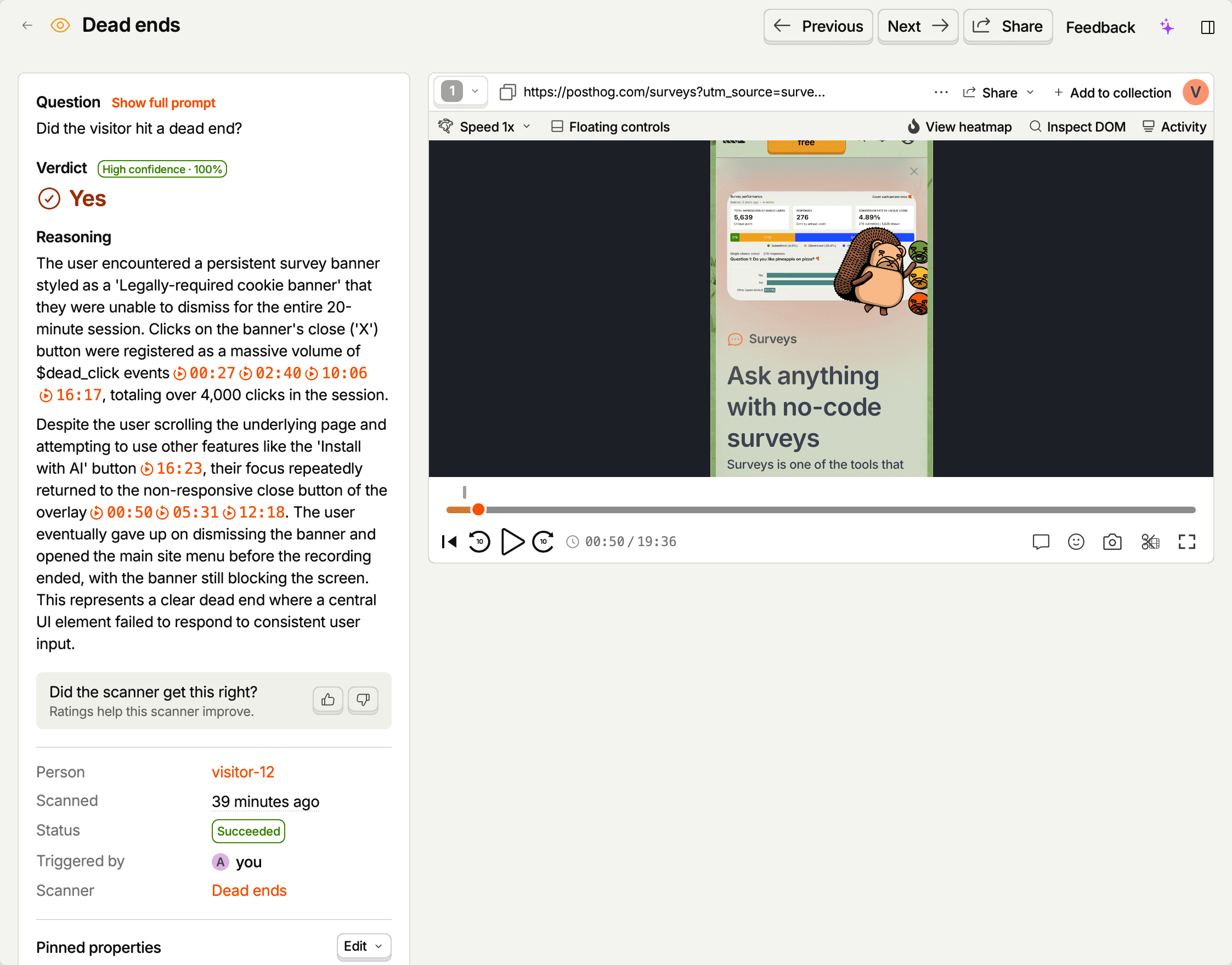
A monitor returns a yes/no verdict for whether the condition in your prompt occurred in the session.
Output
verdict–yesorno(orinconclusiveif you opt the scanner into it)reasoning– plain-language explanation, with inline citationsconfidence– how sure the model is
Type-specific config
- Allow inconclusive verdicts – whether the model can return
inconclusivewhen it genuinely can't tell from the recording. Off by default; turn it on if you'd rather have an explicit "don't know" than push the model into a forced yes/no. It matters most when many matching sessions never reach the flow your question is about.
When to use it
- "Did the user appear stuck on a page?"
- "Did the user trigger a billing-related error?"
- "Did the user complete the onboarding flow?"
Example prompt
Answer yes if the user appears stuck on a page: scrolling without engaging, hovering over elements with no clear CTA, or abandoning the session shortly after arriving. Otherwise answer no.
On $recording_observed – scanner_output_verdict is the string "yes", "no", or "inconclusive". See observations.
PostHog reads your prompt to judge whether a yes is good or bad news (a completed onboarding is good, a payment error is bad) and colors verdicts to match.
Impact and cohorts
The scanner's Overview tab shows the Verdict mix for the selected date range. The range defaults to the last 14 days, or to the days since the scanner was created if it's less than 7 days old. Each verdict row has a Save as cohort button that saves the users behind that verdict as a static cohort. The cohort covers as many days as the selected range, counted back from today, up to 90 days.
The cohort is a snapshot at creation time and doesn't live-update. Use it anywhere cohorts work: funnel breakdowns, retention analysis, survey targeting, or experiment exclusion.
Classifier
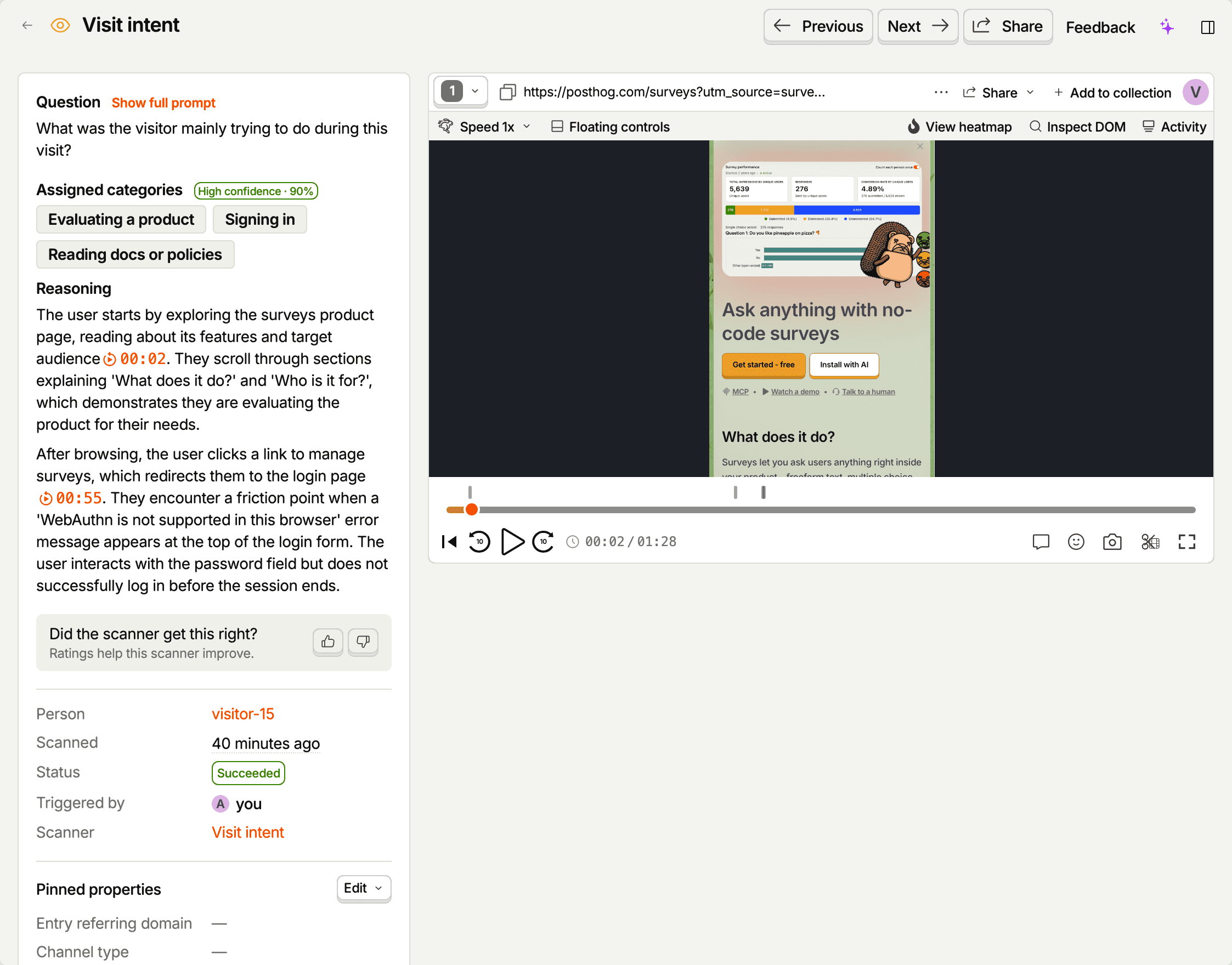
A classifier assigns one or more tags from a vocabulary you define. The app calls these tags categories. You can also allow the model to invent new tags if your vocabulary is incomplete.
Output
tags– array of tag strings the model pickedreasoning– why these tagsconfidence– how sure the model is
Type-specific config
- Categories – the set of allowed tag names. The vocabulary itself is just names – put a short definition of each tag in the prompt so the model knows what it means (see the example below). Include an escape tag such as
unclear, because a classifier has to pick something and will otherwise force a weak fit. Once you've written a prompt, Suggest categories with PostHog AI proposes tags, each marked with where it came from: seen in recordings, from your product, or from the goal. - Allow multiple categories per session – whether the model can pick more than one per session. Otherwise it picks exactly one.
- Allow freeform categories – whether the model can invent new tags outside the vocabulary.
When to use it
- User intent:
browsing,purchasing,support_seeking - Session outcome:
task_completed,task_abandoned,blocked_by_error - Page archetype:
landing,product_detail,checkout,account
Example prompt + vocabulary
Tag this session with the user's intent. Pick the single best fit from the vocabulary. Don't speculate – if you can't tell, pick
unclear.
browsing– exploring without a specific goalpurchasing– actively trying to buy somethingsupport_seeking– looking for help, docs, or a contact channelunclear– not enough signal to decide
On $recording_observed – scanner_output_tags is the array of vocabulary tags. Freeform tags, when allowed, land separately in scanner_output_tags_freeform.
Impact and cohorts
The scanner's Overview tab ranks the top configured categories and, when freeform categories are allowed, the top freeform ones, for the selected date range. The range defaults to the last 14 days, or to the days since the scanner was created if it's less than 7 days old. Each category has a Save as cohort button that saves the users tagged with it as a static cohort, covering as many days as the selected range, counted back from today, up to 90 days.
The cohort is a snapshot at creation time and doesn't live-update. Use it anywhere cohorts work: funnel breakdowns, retention analysis, survey targeting, or experiment exclusion.
Scorer
A scorer assigns a numeric score on a scale you define – e.g. 0 to 10 for frustration, or 1 to 5 for clarity. Use it when "how much" matters and a yes/no verdict would lose information.
Output
score– numeric value on the scale you definedreasoning– why this scoreconfidence– how sure the model is
Type-specific config
- Scale – minimum and maximum values. Any numbers will do (decimals included) as long as the minimum is lower, though whole numbers are easier to reason about when you're reading scores later.
- Score label – optional one-word name for what the scale measures (e.g. "frustration"). Describe what the low and high ends look like in the prompt instead.
When to use it
- Frustration / friction level
- Likelihood of completing a goal
- Severity of an error encountered
Example prompt
Score this session 0 to 10 for how frustrated the user appeared, based on signals like rage clicks, repeated retries of the same action, hovering with no progress, and time spent on dead-end pages. 0 means no visible frustration, 10 means severe and sustained frustration.
On $recording_observed – scanner_output_score is the numeric score. Histograms and percentiles over this field tend to be the most useful insights.
As with monitors, PostHog reads your prompt to judge whether a high score is good or bad news and colors scores to match.

The scanner's Overview tab shows the Score distribution for the selected date range, with the minimum, median, average, and maximum score. There's no cohort button for scorers in the app yet. The API can count affected sessions and create a cohort by score threshold with the min_score and max_score parameters.
Summarizer
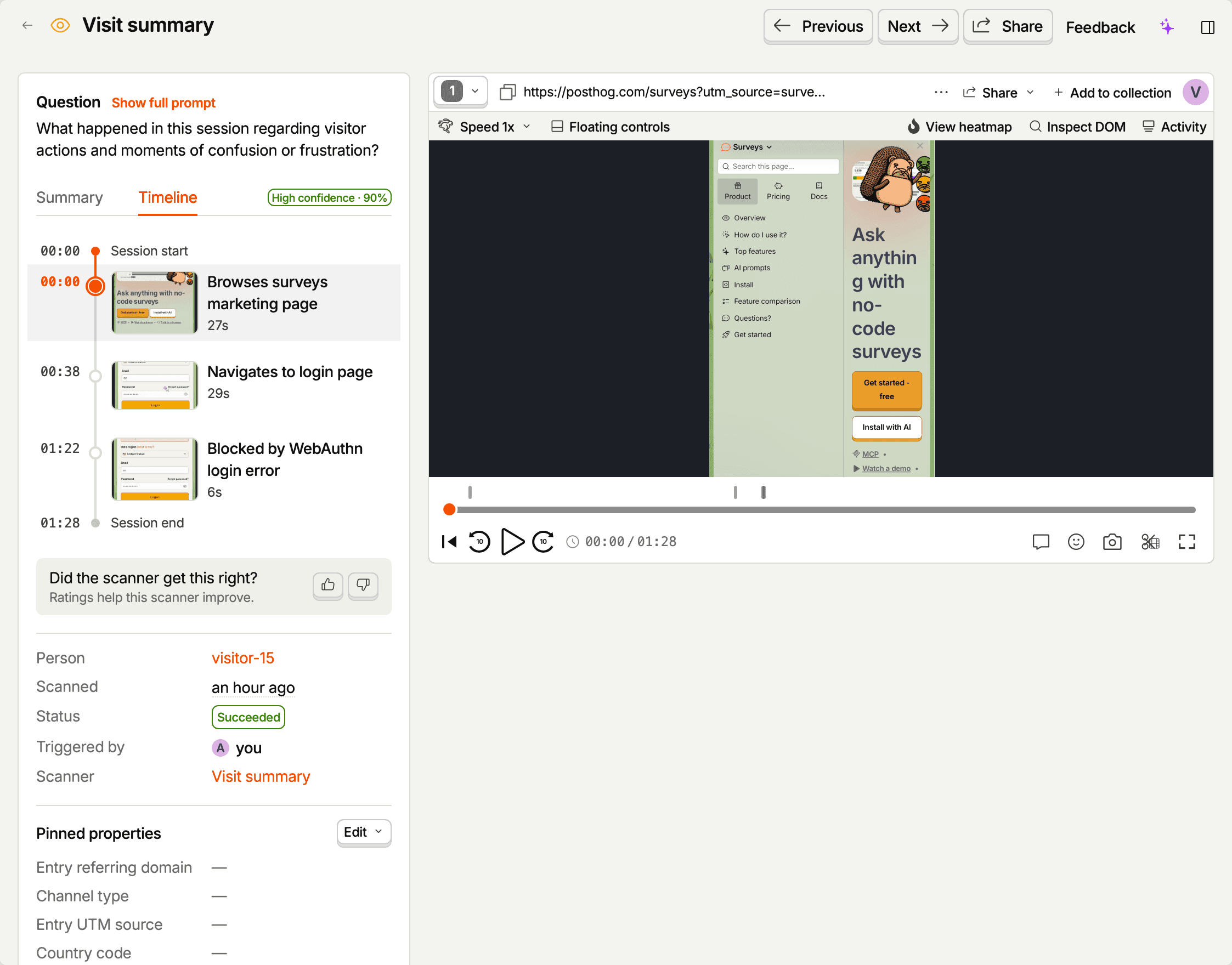
A summarizer produces a prose summary of what happened in the session, plus a title and a breakdown of the session into chapters. Think of it as a TL;DR you can drop into a dashboard or feed to another tool.
Output
title– one-line summarysummary– narrative summary, with inline citationschapters– the session split into parts, each with a short heading, its time span, and a frame that shows it. The observation and the replay player show these as a breakdown of the session.confidence– how sure the model is
Type-specific config
- Additional context – the core summarizer prompt is built in, so instead of a full prompt you add product context or steering – for example, what the ideal user flow looks like.
- Summary length – short (1-2 sentences), medium (4-6 sentences, the default), or long (3-5 paragraphs).
When to use it
- Daily digest of high-signal sessions
- Triage queues where humans need a one-line preview before clicking in
- Feeding into a downstream analytics or retrieval pipeline
Example context
Our product is a B2B file-sharing app. The happy path is signing up, creating a workspace, then uploading a first file. Call out where sessions deviate from that flow, and name the exact page where any error appears.
On $recording_observed – scanner_output_title and scanner_output_summary carry the title and summary. The chapters themselves stay on the observation; the event carries only their number, as scanner_output_chapter_count. See observations.
Note: Summarizers don't support impact tracking or cohort creation since they produce narrative summaries rather than categorical findings.
Experiment
Experiment scanners are in beta. We're still improving them and would love your feedback.
An experiment scanner watches the sessions of people exposed to one experiment and summarizes each session. It shows the summaries for each variant side by side, so you can see what users do differently in each variant.
An experiment scanner is a summarizer with experiment context. PostHog gives the model the experiment's name, its hypothesis, and the names of the feature flag's variants. The model is not told which variant the user is in, so it describes only what the recording shows. PostHog adds the variant to each observation from the exposure data.
The model uses the variant names to tell the versions apart, so name each variant by what users see, for example "Single-page checkout" and "Three-step checkout". When two versions look alike, also say what is different on screen in What to focus on.
This also helps you find a broken flag check. If summaries of control sessions describe the new design, check how your code reads the feature flag.
Ways to create one
- In the new experiment form, on the analytics step, turn on Compare what users do in each variant. The scanner turns on when you launch the experiment.
- On a running experiment's Recordings tab, select Set up experiment scanner.
- In Replay Vision, when you create a scanner, click Track an experiment under Common starting points, pick a running experiment, and click Draft my scanner. This starting point only shows when the project has a running experiment.
- In Replay Vision, create a scanner and select the Experiment type.
Output
The same as a summarizer: title, summary, chapters, and confidence. Each observation also has the session's variant.
Type-specific config
- Experiment – the running experiment to watch. You can't change it after you create the scanner.
- Variants – the variants to watch. Leave it empty to watch every variant.
- Sample variants evenly – on by default, so each variant gets enough sessions, even with an uneven split. Turn it off to sample in proportion to traffic.
- What to focus on – what the summaries should cover, for example the step the experiment changes and where people get stuck.
- Summary length – the same as for a summarizer.
Which sessions it watches
It watches the same people as the experiment's Recordings tab, from their first exposure until the experiment ends. Filters you add yourself still apply on top. It doesn't scan:
- Experiments that aggregate by groups. Their exposures belong to groups, not people, so PostHog can't match them to recordings.
- Sessions of anonymous users who have no person profile.
- Sessions that end before the person's first exposure, or after the experiment ends.
When the experiment ends, the scanner finishes the sessions up to the end date and then stops. When you pause, archive, or delete the experiment, the scanner stops.
Variants tab
The scanner's Variants tab shows each variant's observations and people, and its latest observations. To filter observations by variant, use the variant filter on the observations list.
To compare the variants, add a Variant analysis scout from the Variants tab. Each day, it reads the new summaries, counts the behaviors that recur in each variant, and marks each difference as a trend or as statistically significant. It doesn't read the experiment's results.
When to use it
- See what users do in each variant, and where they get stuck.
- Find a variant that shows the wrong design.
- Explain a result that the experiment's metrics already show.
An experiment scanner can't confirm a small change in a metric, because it reads a sample of sessions. Use the experiment's results for that.
On $recording_observed – the same fields as a summarizer, plus experiment_variant.
Picking a type
Some heuristics:
- Binary yes/no? Monitor.
- A small fixed set of buckets? Classifier.
- A magnitude or "how much"? Scorer.
- Don't know what you're looking for yet, but want to skim? Summarizer.
- What users do in each variant of an A/B test? Experiment.
If you find yourself encoding a number range as classifier tags ("low / medium / high"), use a scorer instead and bucket downstream in SQL.
Confidence and citations
Confidence is the model's self-reported certainty. It's useful as a filter (e.g. "only alert when confidence > 0.7") but not as ground truth – treat it as a signal, not a guarantee. For actual ground truth, rate observations with a thumbs up or down. The scanner learns from your team's ratings and notes, and applies what it learned on later scans. See improving scanners with ratings.
Citations are emitted inline in the model's free-text output (the reasoning field for monitors, classifiers, and scorers; the summary field for summarizers) and rendered as clickable links in the observation detail view. They jump the embedded player to the timestamp the model points at. They're the single best tool for understanding why a model returned what it did.