







Logos & hedgehogs
Contents
All approved brand assets — logos, colors, fonts, hedgehogs, and crests — live at brand.posthog.com. Download them there, or import them from the @posthog/brand package. This page covers usage rules and guidance. Please don't use AI art. We're quite particular about our illustrations and AI just doesn't get it right.
Logo and brand usage for third-parties
We’re really happy people want to build on top of PostHog, but we want to keep it clear when something is made by us or made by someone else. If you've built a third-party app on top of PostHog or want to partner with us in some way, here is some high-level guidance for you to bear in mind.
We're generally OK with people using the PostHog name to describe compatibility. For example, you can say your product "works with PostHog," is "built for PostHog" or "built on PostHog".
We're not OK with people using the PostHog name to make it look like your project is made by, endorsed by, or is officially partnered with PostHog if it isn't. So for example, while "Desktop Studio for PostHog" would be fine, "Official PostHog Desktop Studio" or "PostHog Desktop Studio" would not be.
You can use our logo or brand assets only in unmodified form, and not as the main branding for your own project. However, you may not use our hedgehog mascot or other illustrative brand assets in any commercial or marketing materials without explicit permission, as this can imply endorsement and confuse people. You cannot make it seem like your product is an official PostHog product, or that we've endorsed your product or partnered with you if we haven't. Please make sure that logo, brand asset and name usage are consistent with the rules we've laid out in this page.
We don't like doing it, but if we spot some name, brand asset or logo usage that are inconsistent with our guidelines or brand, we will reach out to try to get that sorted out, so please try to be thoughtful about branding and try to be consistent with the guidelines we've set out here. If you have questions, please reach out to us at marketing@posthog.com for clarification.
Briefing external vendors
When you bring in an external party to produce brand work – a print vendor, a video production company, a hotel, a conference AV team – send them this guide. Key things to brief them on:
- The PostHog visual style (see visual identity)
- Logo files (provide SVG, not PNG, as source)
- Color palette (provide hex values)
- Typography (provide font files or specify licensed fonts)
- Illustration style (share examples from posthog.com and Figma)
- What "not on-brand" looks like (blobs, stock art, generic SaaS layouts)
Avoid pairing the logomark with the "PostHog" wordmark in regular text that isn't part of the logo itself.
Logo
Download every version of the logo from brand.posthog.com/logo — landscape, stacked, logomark, and wordmark, in gradient, print (4-color/CMYK), and mono treatments, plus padded square and circle-safe exports for avatars. Please keep the logo intact. SVG is always preferred as it will infinitely scale with no quality loss.
If you're building a PostHog UI, import the parametric <Logo> component from the @posthog/brand library rather than downloading a file.
When to use each logo
- The standard logo — the full-color one, with gradients — is the primary logo. Use it by default.
- On dark backgrounds, always use the light logo (the white version) — never the standard/full-color one.
- On light backgrounds, prefer the standard logo, and only reach for the dark logo (solid black) when a single-color mark is required.
- Use the print (4-color) version only for print or other limited-palette contexts where the gradients can't be reproduced.
- Use the logomark on its own only at small sizes — favicons, app icons — where the full lockup won't fit and the overlapping gradients would get too busy.
- Use a square logomark for avatars and integrations that require a square image. Its transparent square canvas keeps the logomark's proportions intact — never stretch the standard logomark to fill a square. Use the standard gradient version on light backgrounds, or the light solid-white version on dark backgrounds.
- Use the stacked logo for portrait or square placements where the standard (landscape) lockup is too wide.
Never modify the colors in the logomark (for example, don't recolor the hedgehog's face white on a dark background — use the light logo instead).
The padded square and circle-safe exports help when uploading to a third-party service that crops to a square or circle and gives no control over the margin around the logo — G2, X, LinkedIn, or Reddit profiles, for example.
Using an older version? The logos on brand.posthog.com come straight from the
@posthog/brandlibrary, so they always reflect the current mark. If you have an older PostHog logo saved locally (e.g. a square font or sharp-edged logomark), please replace it with the current version.
Squeak
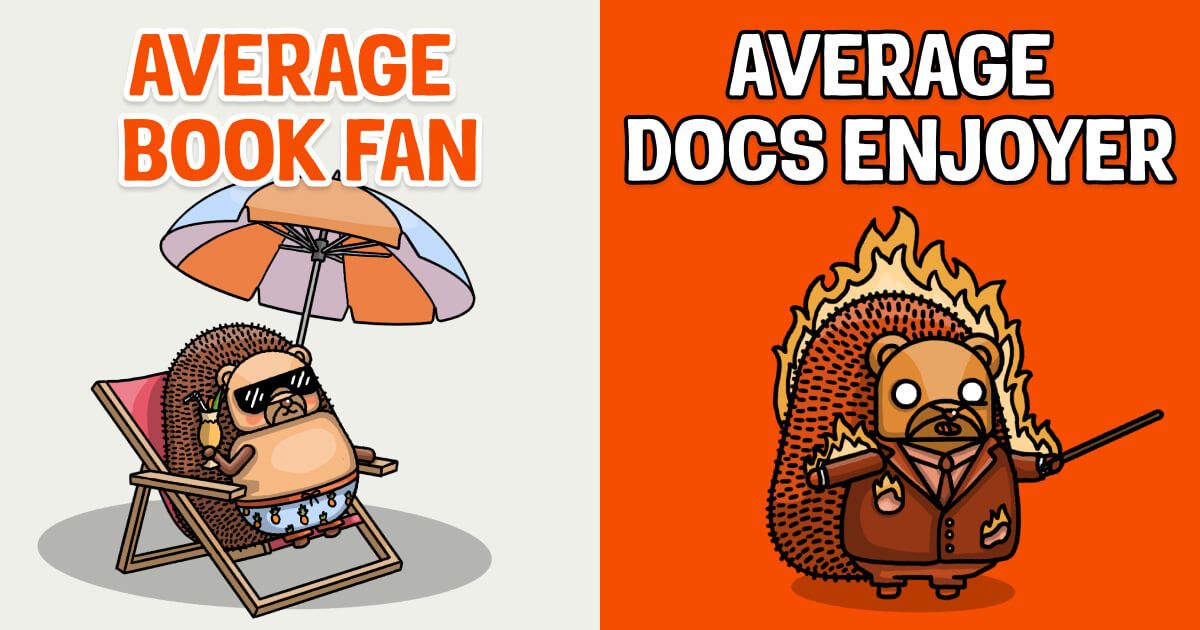
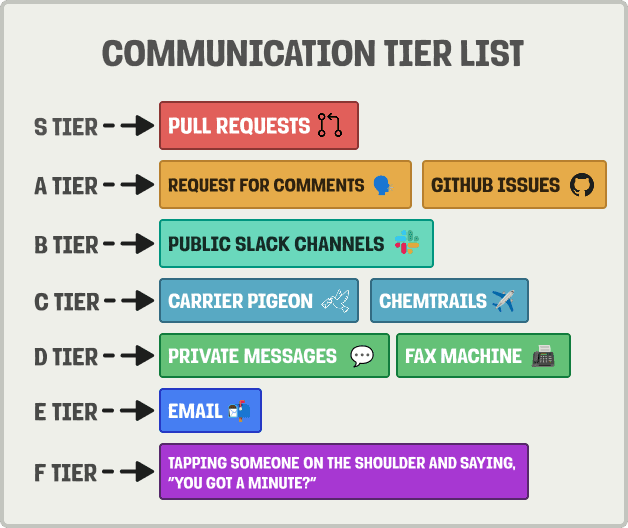
Squeak is used in informal settings, generally accompanied by hedgehog artwork.
Usage guidelines
- When used for headlines or at larger sizes, use the
Boldvariant - Only for small (description) text, use the
Normalvariant in regular casing. Never use for more than a couple lines of text in a row. - Always use uppercase letters
- Letter spacing: -2%
- Line height: 100% (generally)
Examples
Loud Noises
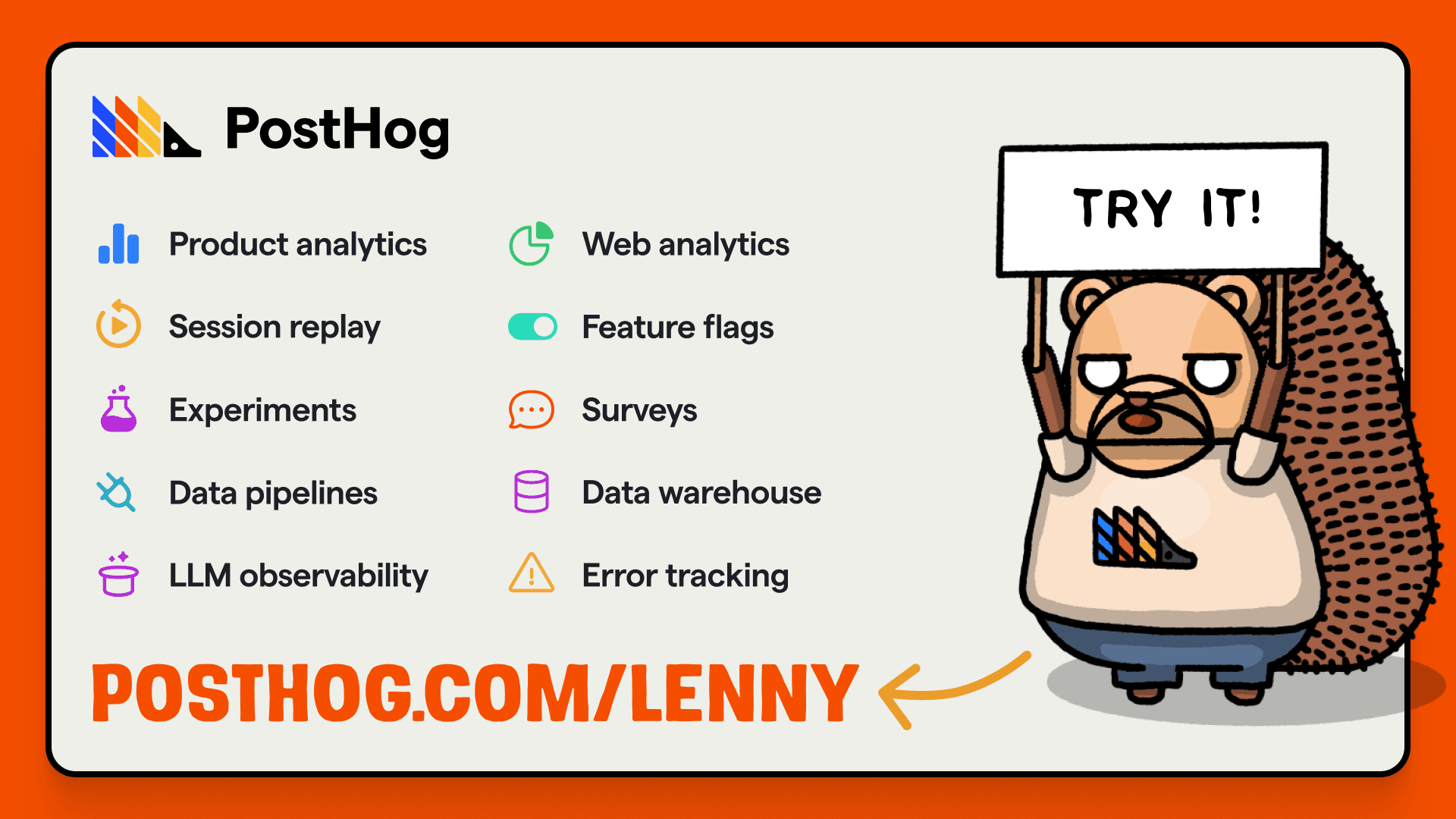
Loud Noises is used for quotes in hedgehog artwork.
Usage guidelines
- Only use for quotes in hedgehog artwork or where hedgehogs are otherwise communicating something
- Only use uppercase
Example
Loud Noises is used in the sign the hedgehog is holding:
If you have questions about which font to use, please ask in #team-website - don't just do what feels right to you!
Colors
We have two color schemes (light and dark mode), but primarily use light mode.
We use the same set of colors, and only swap out a couple hues depending on the color scheme.
Colors denoted with an asterisk (*) are the same between palettes.
| Name | Light mode | Dark mode |
|---|---|---|
| Text color (at 90% opacity) | ■ #151515 | ■ #EEEFE9 |
| Background color | ■ #EEEFE9 | ■ #151515 |
| Accent | ■ #E5E7E0 | ■ #2C2C2C |
| Dashed divider line | ■ #D0D1C9 | ■ #4B4B4B |
| Red* | ■ #F54E00 | |
| Yellow | ■ #DC9300 | ■ #F1A82C |
| Blue* | ■ #1D4AFF | |
| Gray* | ■ #BFBFBC | |
| Links | Use Red |
Use opacity over more colors
When possible, use opacity to modify colors. This allows us to use fewer colors in our palette, which is light years easier when working with two color schemes.
| Paragraph text | rgba($value, 90%) |
|---|---|
| Links | rgba($value, 95%) (and semibold) |
| Links:hover | rgba($value, 100%) (and semibold) |
Presentations
We use Pitch for polished presentations (like when giving a talk). Read more about this in our communication guidelines.
Illustration guide
Our hedgehog mascot is called Max and we're quite particular about how he (or any of his hoggy pals) are illustrated. We're exploring AI tools for internal use, but currently ask that you don't use AI tools to create your own hedgehog art. Instead, you can follow the guidelines below, or create a new art request.
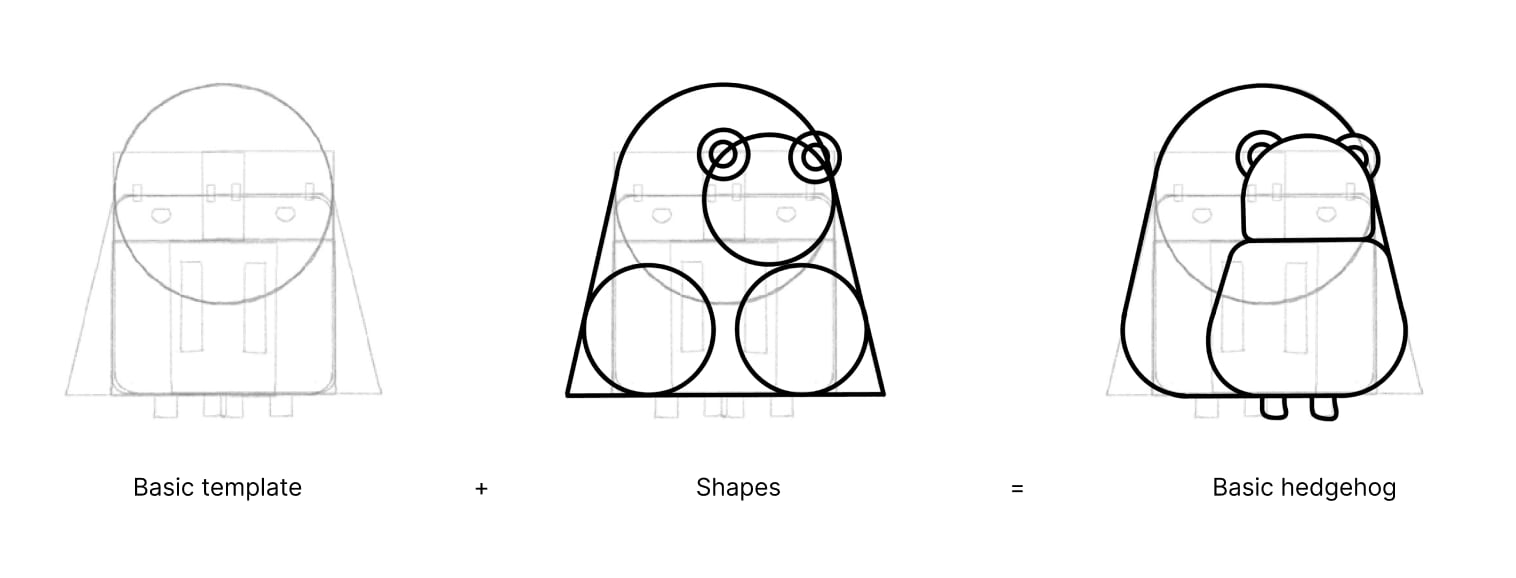
If Max is drawn in color he should always have a beige body with brown spines, arms, and legs. His arms should only bend once in the middle and he doesn't have fingers unless swearing or pointing. His feet are stubby by design and his snout lines should be visible unless obscured by a mask or beard. His expression comes mainly from his eyebrows.
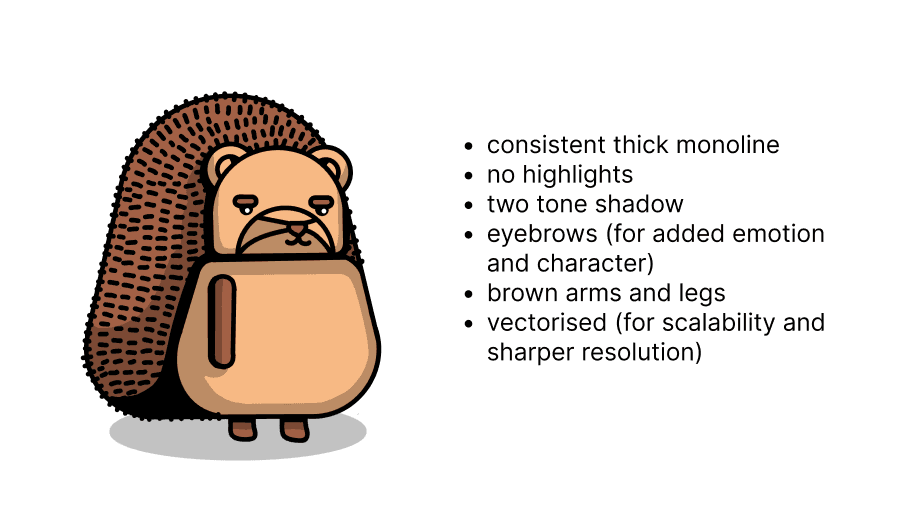
He should be outlined with a strong, black monoline with consistent thickness. He should always face left, right, or straight-on but shouldn't be drawn with a side profile or from behind as he's self-conscious.
A more detailed version of this guide is available on Figma for team members.
Hedgehog library
All our currently approved hedgehogs are on brand.posthog.com/hoggies. Anyone — team member or not — can browse the library and download any hog as SVG or PNG, without Figma access and without relying on the design team.
Team members can fall back to the Figma brand book to export a hog at a custom size, or to grab one that hasn't synced to the library yet:
- Open the Figma file. You can manually browse, or use
Cmd + Fto search based on keywords such as 'happy', 'sad', or 'will smith'. - Select the hog you want. If needed, adjust the size using the 'Frame' menu in the top of the right-hand sidebar.
- At the bottom of the right-hand sidebar, select the file type you need in the 'Export' menu, choose
@2x, then select 'Export [filename]' to download the image.
If you can't find a suitable hog, you can request one from the design team.