







Prompt management
Contents
Prompt management lets you create and update LLM prompts directly in PostHog. When you use prompts through the SDK, they're fetched at runtime with caching and fallback support—so you can iterate on prompts without deploying code.
Why use prompt management?
- Update prompts without code deploys – Change prompts instantly from the PostHog UI
- Non-engineers can iterate – Product and content teams can tweak prompts without touching code
- Track prompt usage – Link prompts to generations to see which prompts drive which outputs
- Versioning – Every change creates an immutable version you can view, compare, or restore
- Labels – Point a label like
productionat a version and fetch by label, so saving a prompt and releasing it are separate steps - Configuration – Store model parameters or any settings next to the prompt and change them without a deploy
- A/B testing – Compare prompt versions on cost, latency, and eval pass rate using PostHog Experiments
Creating prompts
- Navigate to Prompt management > Prompts
- Click New prompt
- Enter a name for your prompt
- Write your prompt content, using
{{variables}}for dynamic values - Click Create prompt
This creates version 1 of your prompt. Each subsequent edit creates a new immutable version.
Markdown preview
When viewing a prompt, markdown rendering is enabled by default, formatting your prompt text with headings, lists, bold, and other markdown elements. Click the markdown icon next to the Prompt label to toggle it off and view plain text. PostHog remembers your choice and applies it to every prompt you open. When editing a prompt, the view switches to plain text automatically.
Prompt naming rules
- Names are immutable after creation (cannot be changed)
- Only letters, numbers, hyphens, and underscores allowed (
^[a-zA-Z0-9_-]+$) - Names must be unique within your project
Managing prompts via MCP
You can also manage prompts through the PostHog MCP server using AI agents like Claude Code, Cursor, or any MCP-connected tool.
The MCP server provides seven prompt management tools:
| Tool | Description |
|---|---|
llma-prompt-list | List all team prompts with optional name filtering |
llma-prompt-get | Get a prompt by name, including full content, optionally by version or label |
llma-prompt-create | Create a new prompt with a unique name and content |
llma-prompt-update | Publish a new version of a prompt by name, optionally with a note describing the change |
llma-prompt-duplicate | Copy a prompt's latest version to a new prompt under a new name, for forking or renaming |
llma-prompt-label-set | Point a label at a version, creating the label or moving it from another version |
llma-prompt-label-delete | Remove a label from a prompt |
This enables teams to manage prompts programmatically from agent workflows without using the web UI.
Template variables
Use double curly braces to define variables in your prompts:
Variable names can include letters, numbers, underscores, hyphens, and dots.
Versioning
Every prompt change creates a new immutable version. Previous versions are preserved and accessible.
How versioning works
- The first save creates version 1
- Each subsequent publish increments the version number
- Previous versions are never modified
- By default, the SDK fetches the latest version
Publish a new version
- Open a prompt and click New version
- Make your changes
- Click Publish — the button shows the number the new version will get, for example Publish v4
- Review the diff of your changes, optionally add a note describing what changed, and confirm
The note appears alongside the version in the Version history sidebar, so you can scan past changes without opening diffs. It can also be set programmatically via the version_description field on the publish API and the MCP llma-prompt-update tool.
If someone else published a new version while you were editing, publishing fails with a warning. Your edits are preserved in the editor — review them against the new latest version and publish again.
Restore a previous version
- Open a prompt and select a version from the Version history sidebar
- Click New version — the editor is prefilled with that version's content
- Edit the prompt content if needed
- Click Publish and confirm in the review dialog
This publishes the old content as a new version. The original version remains unchanged.
Compare versions
Compare the content of two prompt versions side-by-side to see what changed. This is available for prompts with two or more versions.
To compare versions:
- Open a prompt and click Compare versions next to the Prompt label
- The diff view shows the current version against the previous version by default
- Use the version dropdown to change the comparison target
You can also click the compare icon on any version in the Version history sidebar to compare it with the currently selected version. The comparison target is highlighted with a Comparing tag in the sidebar.
Unchanged regions are automatically collapsed in the diff view. Click Compare versions again to exit the diff view.
Archive a prompt
Click Archive to remove a prompt from active use. This archives all versions of the prompt. Any code fetching the prompt by name stops resolving it. Archiving also removes the prompt's labels.
Restore an archived prompt
Archived prompts stay in your project. To see them, turn on Show archived on the prompts list. Each archived prompt appears once, at its most recent version.
Click Restore to bring a prompt back. All of its versions come back with the same numbers, so code that fetches by name or by version works again. Labels are not restored: set them again on the versions you want to release.
Restoring fails in these cases:
- An active prompt with the same name exists. Names are immutable, so the archived prompt can't be restored while the new one exists. Archiving the new one does not help: both would then share version numbers and neither could be restored. Keep the active prompt, or create a new prompt with the archived content.
- The name was archived more than once and the archived versions overlap. Create a new prompt instead.
- The latest archived version references a prompt that is still archived, or references a label that no longer exists. Restore the referenced prompt first, and if the reference follows a label, set that label again before restoring the referencing prompt.
With the API, list archived prompts with ?archived=true and restore one with a POST request:
Labels
A label is a movable pointer to exactly one version of a prompt. Fetching by a label like production returns whatever version the label points to right now.
Labels separate saving a prompt from releasing it. Without labels, code either fetches the latest version (so every save immediately changes what your app uses) or pins a version number (so every release needs a code change). With a label, you edit and publish versions freely, then move the label when a version is ready:
- Release a version by pointing
productionat it - Roll back by pointing
productionat an earlier version - Your code just fetches by label and never changes
One version can hold several labels (for example production and staging on the same version), but a label always points to exactly one version. Setting a label that already exists on another version moves it there.
Label naming rules
- Lowercase letters, numbers, dots, hyphens, and underscores; must start and end with a letter or number
- Maximum 128 characters
latestis reserved (it always means the newest version)- Numbers-only names are not allowed, to avoid confusion with version numbers
- Up to 50 labels per prompt
Managing labels
In the app
Each version in the version history shows the labels pointing at it.
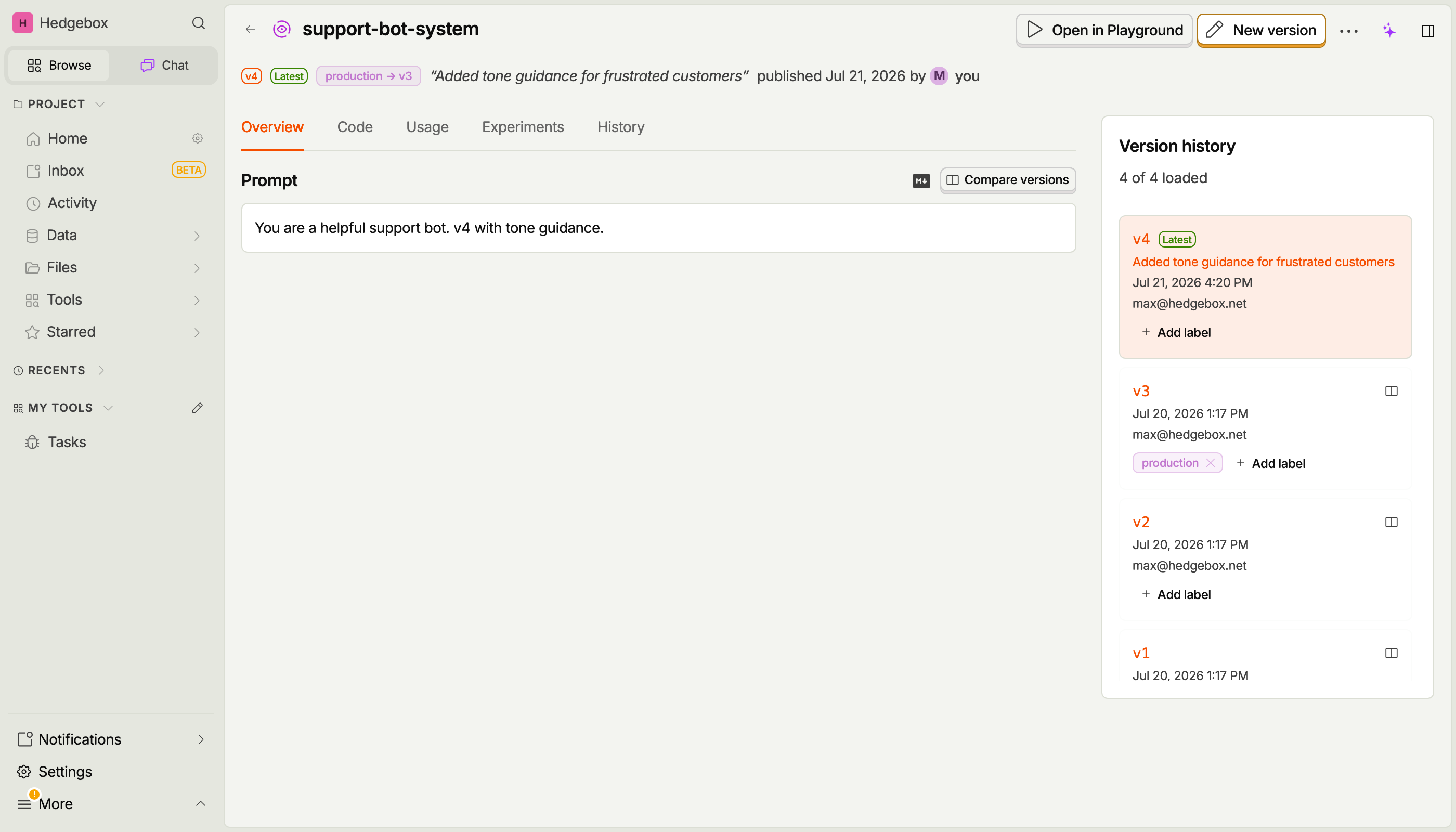
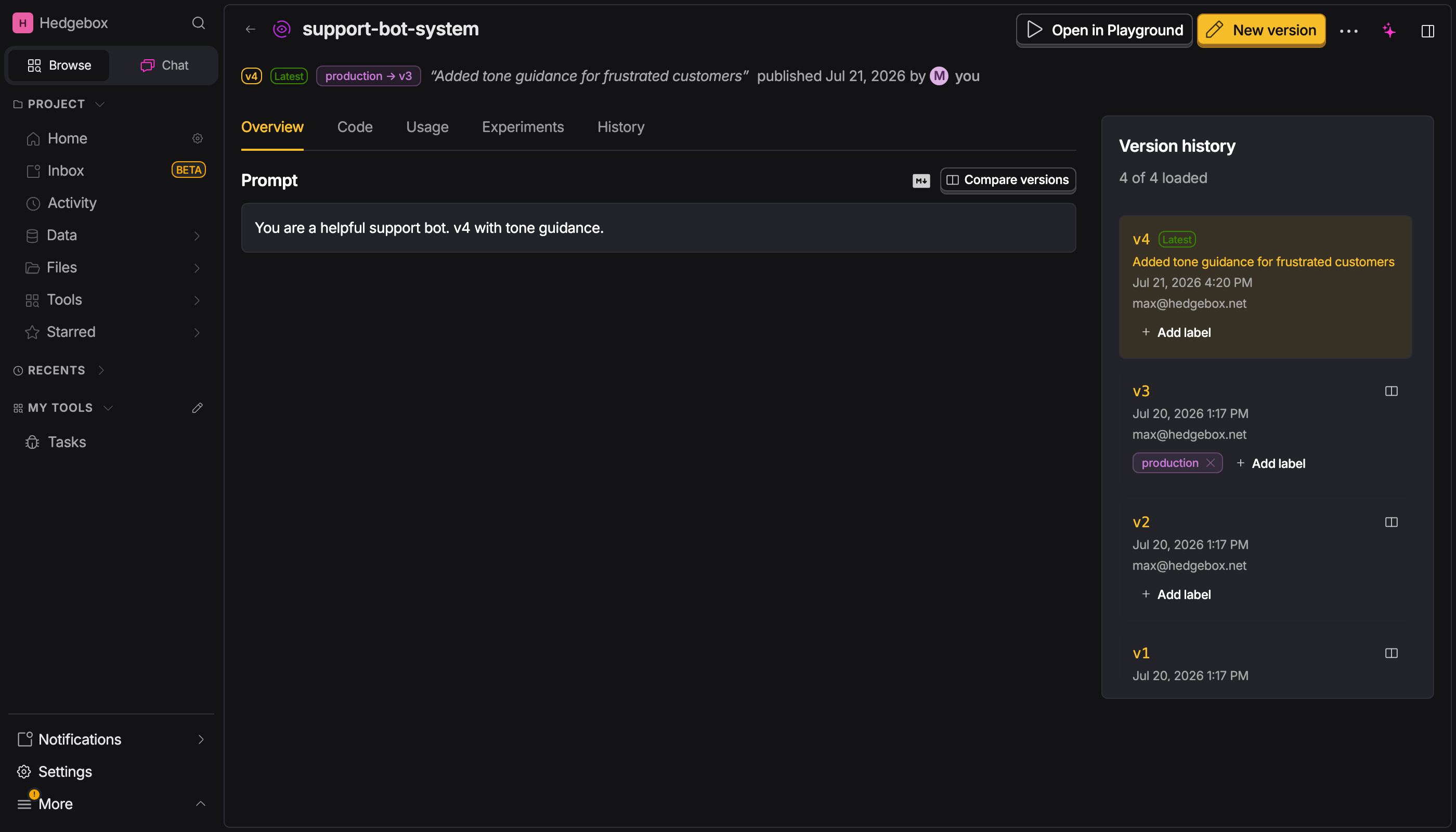
To set a label:
- Open the prompt and find the version in the version history
- Click Add label on that version
- Pick an existing label, or type a name to create a new one
If the label is already on another version, PostHog asks you to confirm the move:
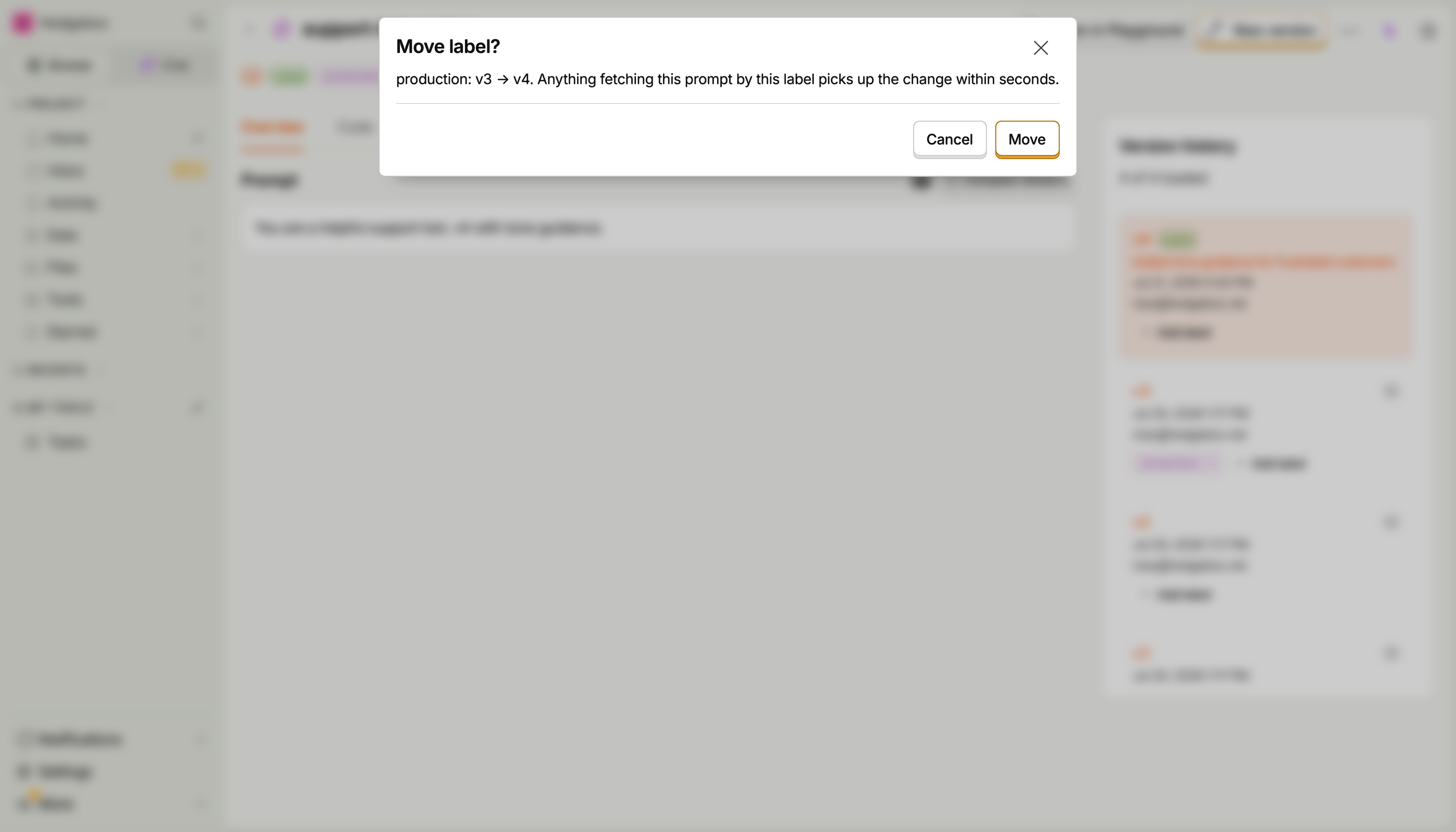
To remove a label, click the × on the label and confirm.
The History tab on the prompt shows every label change: who created, moved, or removed a label, and when.
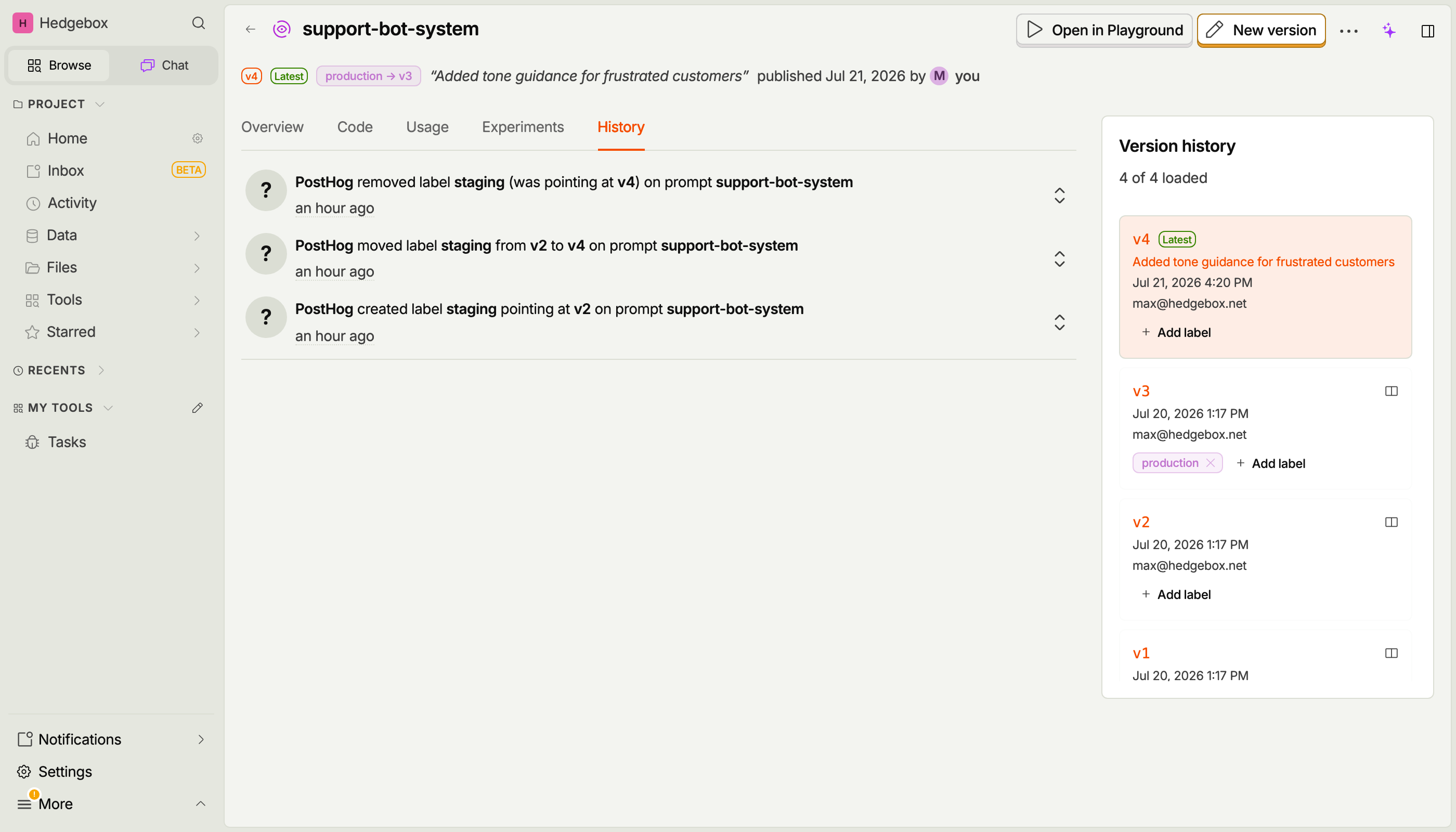
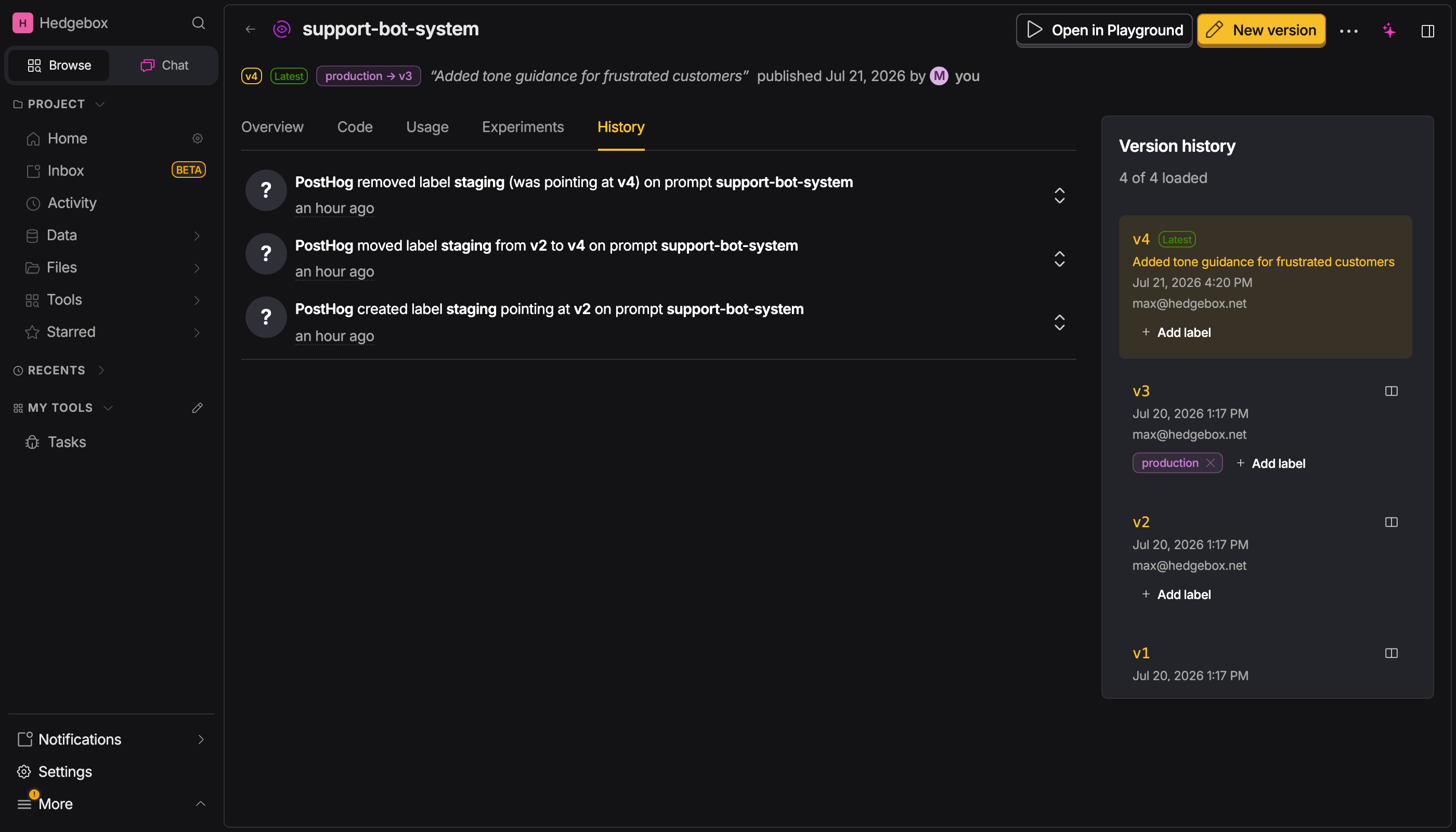
With the API
Set or move a label:
Remove a label with a DELETE request to the same URL. You can also manage labels through the MCP tools (llma-prompt-label-set, llma-prompt-label-delete).
How label changes propagate
Moving a label takes effect on the PostHog API within seconds. SDK consumers pick it up when their client-side cache expires, so a moved label is fully live within the SDK cache TTL (5 minutes by default, configurable per fetch).
If your PostHog instance predates prompt labels (self-hosted), the API ignores the label parameter and returns the latest version. The SDKs log a warning when this happens on a single fetch, and a bulk fetch by label with get_all / getAll fails with an error.
Prompt references (partials)
Share common content across prompts instead of repeating it. Define a block once as its own prompt, then reference it from other prompts. When your app fetches a prompt, PostHog replaces each reference with the referenced prompt's content and returns one assembled prompt, so your code doesn't change.
This is useful for content every prompt needs, like guardrails, tone guidelines, or output format instructions: edit the shared prompt once and every prompt that references it picks up the change.
Referencing another prompt
A reference is a tag in the prompt text:
Every reference names the prompt to include and how to resolve it:
@@@prompt:name=guardrails|label=production@@@follows the label. Moving theproductionlabel onguardrailsupdates every prompt that references it on the next fetch, without publishing new versions of those prompts.@@@prompt:name=guardrails|version=3@@@pins version 3 forever.
In the editor, click Insert reference to pick a prompt and a label or version instead of typing the tag. References display as clickable chips under the content, and Show resolved shows the assembled content exactly as a fetch returns it.
How references resolve
Resolution happens on the PostHog API at fetch time:
- The SDK receives one assembled prompt with each tag replaced by the referenced content. No SDK changes are needed.
- The response includes
resolved_references: the exact versions that were spliced in. The same information is recorded on the$llm_prompt_fetchedevent, so you can trace which shared content each call actually used. - Pass
resolve=falseto get the raw text with the tags, for example for exporting. Resolution applies to full content only:content=previewandcontent=noneresponses show raw tag text in previews and outlines. - If a referenced prompt can't be resolved, the fetch fails with an error naming it rather than returning a prompt with missing content.
Rules and limits
- A referenced prompt must exist, with the named label or version, when you publish. References go one level deep: a prompt that contains references can't itself be referenced.
- References only work in plain-text prompts. A prompt whose content is JSON can't contain a reference, and a JSON prompt can't be referenced.
- A prompt can reference up to 20 other prompts, and the assembled content counts toward the 1 MB prompt size limit.
- A prompt that others reference can't be archived, and a label that references follow can't be deleted or moved to a version that would break resolution. The error lists the referencing prompts.
Configuration
A prompt version can store a config: a JSON object with model parameters or any other settings your app reads at runtime. PostHog doesn't interpret it. Whatever you store is returned as-is when you fetch the prompt, so it can hold a model name, sampling parameters, tool definitions, a response schema, or anything else your app needs.
Config is versioned together with the prompt content. Publishing a config change creates a new version, moving a label releases it, and rolling a label back rolls the config back too. You can publish a version that changes only the config, so tuning a parameter doesn't require touching the prompt text.
Don't store secrets in the config. It's returned to anyone who can read the prompt.
The playground uses the config too. Saving a playground setup to a prompt stores the model, parameters, tools, and messages under keys like model, temperature, and messages, and loading the prompt restores them. A playground save replaces only those keys and keeps any others you wrote through the API. If your app reads the config, expect these keys on prompts saved from the playground.
In the app
When editing a prompt, click Add configuration and enter a JSON object, for example:
The config must be a JSON object. Click Remove next to the Configuration label to clear it. Either way, nothing changes until you publish, and the review dialog shows a diff of the config change first. When a version has a config, it's shown below the prompt content, and comparing versions also diffs the config.
With the API
The create and publish endpoints accept a config field:
Three things to know about publishing:
- If you leave
configout, the new version keeps the previous version's config. Text-only edits never drop it. - Send
"config": nullto remove it. - You can send
configon its own, withoutpromptoredits. The prompt content carries forward unchanged.
The MCP llma-prompt-create and llma-prompt-update tools accept config the same way.
In your code
Fetched prompts expose the config, so your app can spread it into the LLM call:
config is None (Python) or null (JavaScript) when the version has no config, and it's missing entirely on fallback results, so read it defensively with defaults as above. The config is cached together with the prompt, including the stale-cache fallback.
Using prompts in code
Prerequisites
- Personal API key (
phx_...) – Used as Bearer auth for prompt fetches - Project Token (
phc_...) – Used astokenquery param so prompt reads are resolved deterministically to the right project - PostHog SDK – Install the Python or JavaScript SDK with the AI package
When you initialize Prompts with a PostHog client, the SDK uses the client's project token automatically. If you initialize Prompts directly, you must pass both keys.
Use your app host (for example, https://us.posthog.com or https://eu.posthog.com) for prompt reads, not an ingestion host like https://us.i.posthog.com.
Python
JavaScript/TypeScript
Fetching all prompts in one request
If your app uses many prompts, fetch them all in one request instead of one request per prompt. Each fetched prompt is stored in the cache, so later get() calls are served from cache until the TTL expires:
With a label, the result maps each prompt name to the version the label points to, and prompts that don't carry the label are not included. On a self-hosted PostHog instance that predates label support on the list endpoint, a labeled call fails with an error instead of returning latest versions.
Without a label, every prompt is included at its latest version, the same version a plain get(name) returns. This includes prompts whose latest version has never been released through a label.
Caching
Prompts are cached on the SDK side to minimize latency and API calls:
- Default TTL: 5 minutes (300 seconds)
- Configurable per-request: Override with
cache_ttl_seconds(Python) orcacheTtlSeconds(JS) - Stale-while-revalidate: If a fetch fails, the cached value is used (even if expired)
- Refetch cooldown: After a failed refetch, the stale value is served for 60 seconds before the SDK tries the network again. When the server sends a
Retry-Afterheader, the SDK waits that long instead, up to 1 hour - Fallback support: Provide a fallback value that's used when both fetch and cache fail
- Separate entries per fetch type: Latest, pinned-version, and labeled fetches of the same prompt are cached independently. Label moves reach your app when the labeled entry's TTL expires
- Bulk warm-up:
get_all(Python) andgetAll(JavaScript) load every prompt in one request, at a label or at the latest version, and fill the cache for later fetches
Linking prompts to traces
To track which prompts and versions are used in which generations, include the $ai_prompt_name and $ai_prompt_version properties when capturing:
Once linked, you can:
- Filter generations by prompt name and version
- View related traces from the prompt detail page
- See which specific version was used in each trace
- Analyze which prompt versions perform best
Prompt usage
Every SDK fetch of a prompt by name captures a $llm_prompt_fetched event. The Usage tab on a prompt shows these events in two views:
- Trend: a graph of prompt fetches over time
- Log: the individual fetch events, including the version each fetch resolved to
Both views can show fetches of the selected version only, or of all versions of the prompt. Use this to check whether a version is still being fetched, for example before you move a label or archive the prompt.
Bulk fetches with get_all / getAll capture one $llm_prompt_fetched event per request, with the prompt count and label instead of a prompt name. These fetches do not appear on any prompt's Usage tab, so if your app loads prompts in bulk, an empty usage view does not mean the prompt is unused.
Limits
- Maximum prompt size - 1MB per prompt
- Maximum config size - 1MB per version
- Maximum versions per prompt - 2,000